How to create seamless tileable background textures with AI
Back to Blog

How to create seamless tileable background textures with AI

Gamelabs Studio 4 min read

Every game needs background textures: grass, stone, metal plating, dirt paths. and they all need to tile seamlessly. Traditionally, that meant manually offsetting images in Photoshop and painstakingly painting out the seams. It works, but it is slow.

With Gamelab Studio, you can skip all of that. Describe the surface you want in plain text, toggle the tileable setting, and the AI generates a production-ready texture whose edges wrap perfectly. In this guide, we walk through the full process and then show how to quickly build out an entire texture library by repeating the workflow.

Set Up Your Project

Before generating anything, you need a project to keep your textures organized. If you are building multiple biomes or levels, one project per environment keeps things manageable.

1. Create a New Project
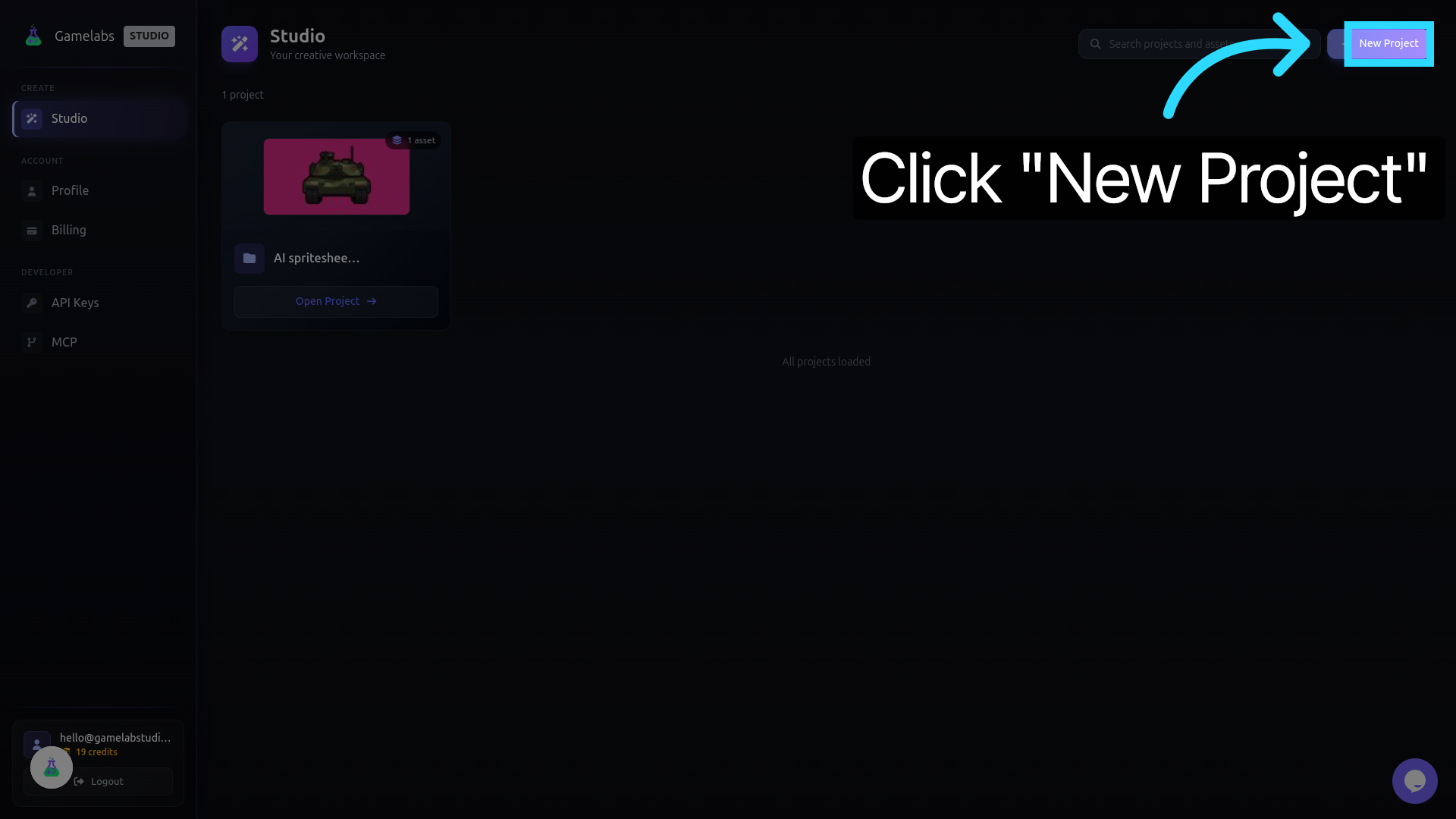
Head to gamelabstudio.co and sign in. From the dashboard, click New Project, give it a name (e.g., "Forest_Textures"), and hit enter to save.
Create a New Project

2. Open the Project and Create an Asset
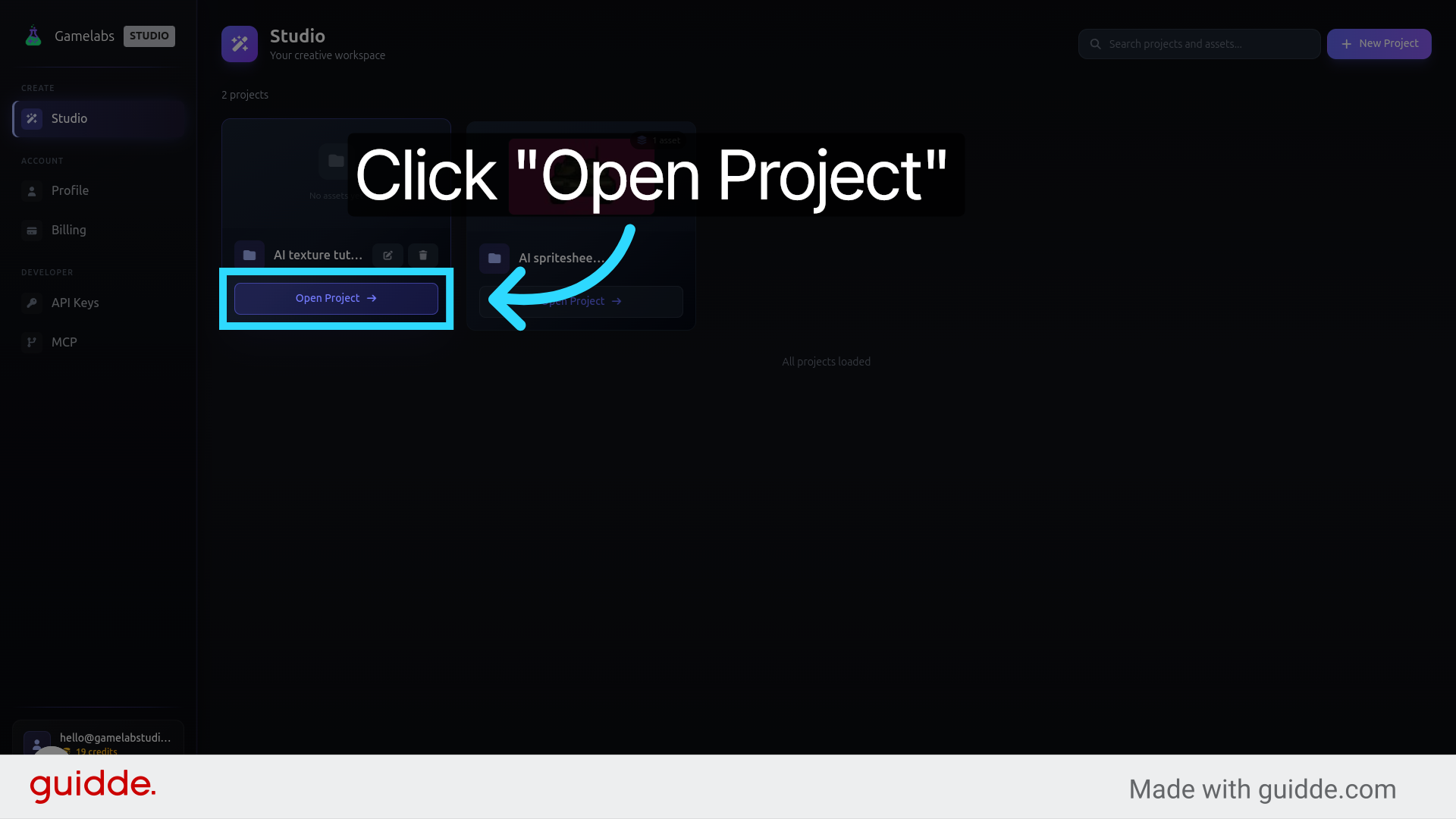
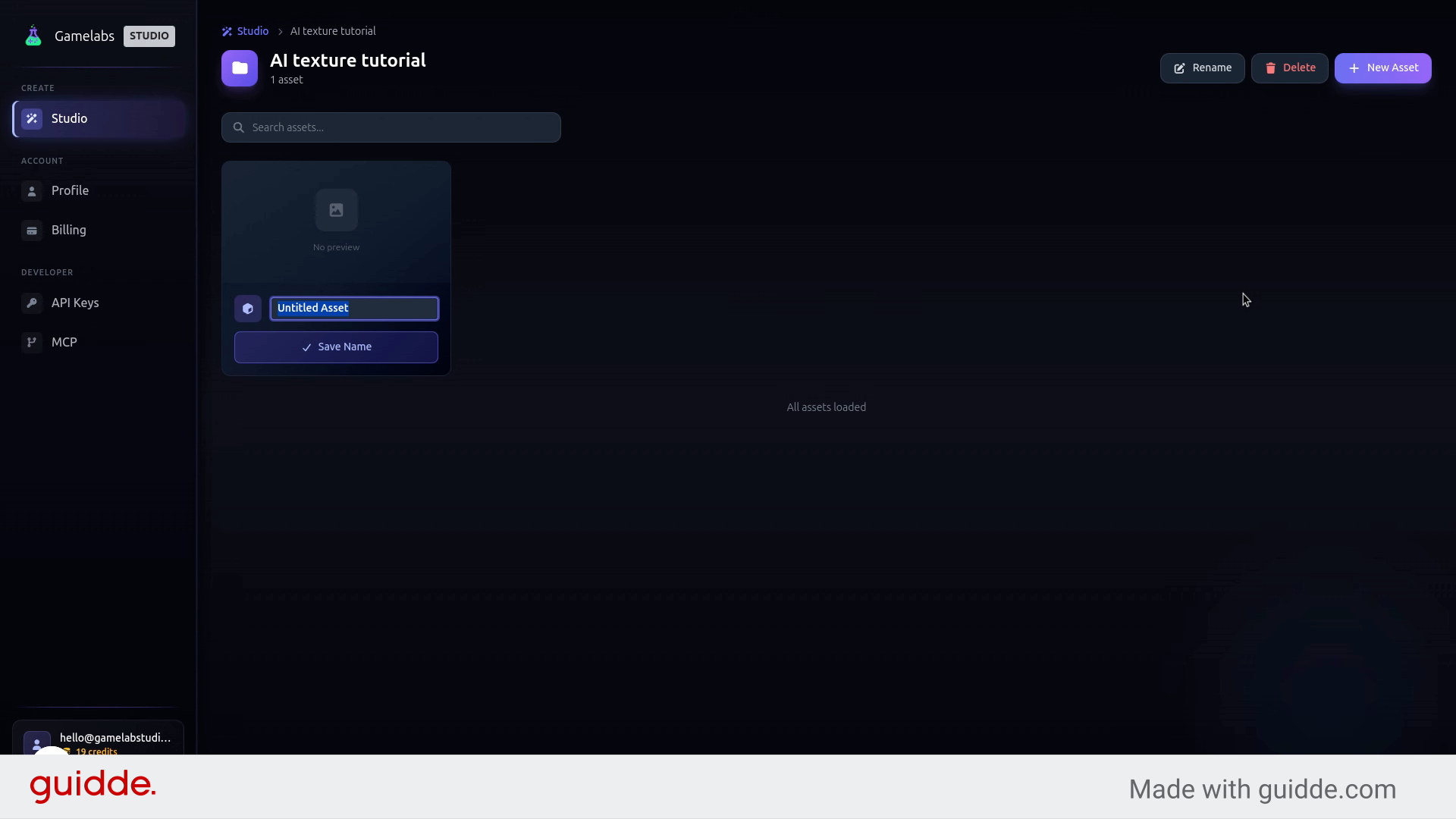
Click Open Project to enter the workspace, then click New Asset. Name it something descriptive like "Grass_Ground" so you can tell your textures apart as the library grows. Click Save Name to confirm.
Open the Project Name the Asset

Generate a Tileable Texture

This is the core of the workflow. You write a text prompt describing the surface material, enable the tileable setting, and the AI handles the rest—including making sure the edges wrap without visible seams.

3. Open the Asset Editor
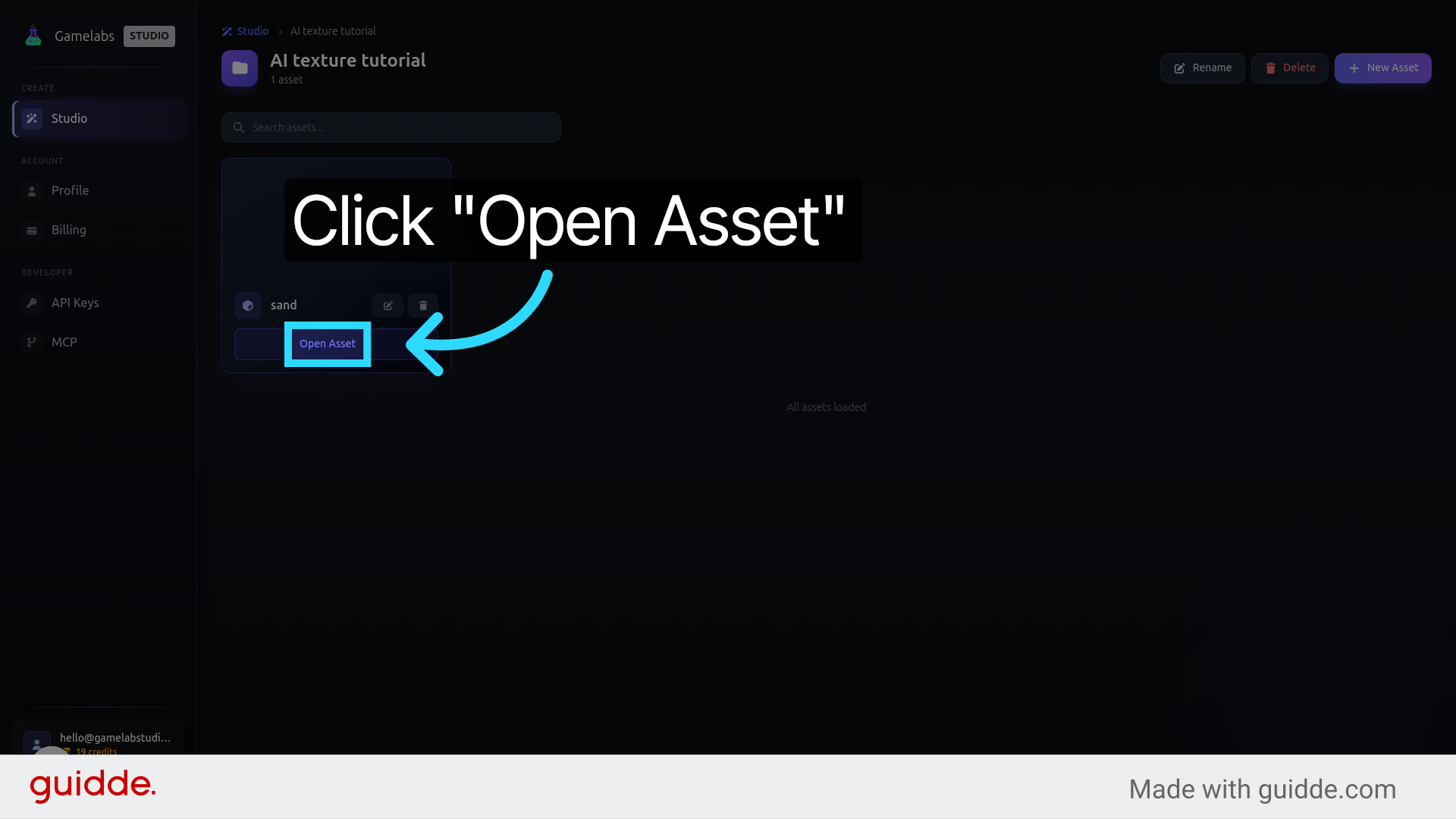
Click Open Asset to enter the editing view where generation happens.
Open the Asset Editor

4. Write Your Prompt and Keywords
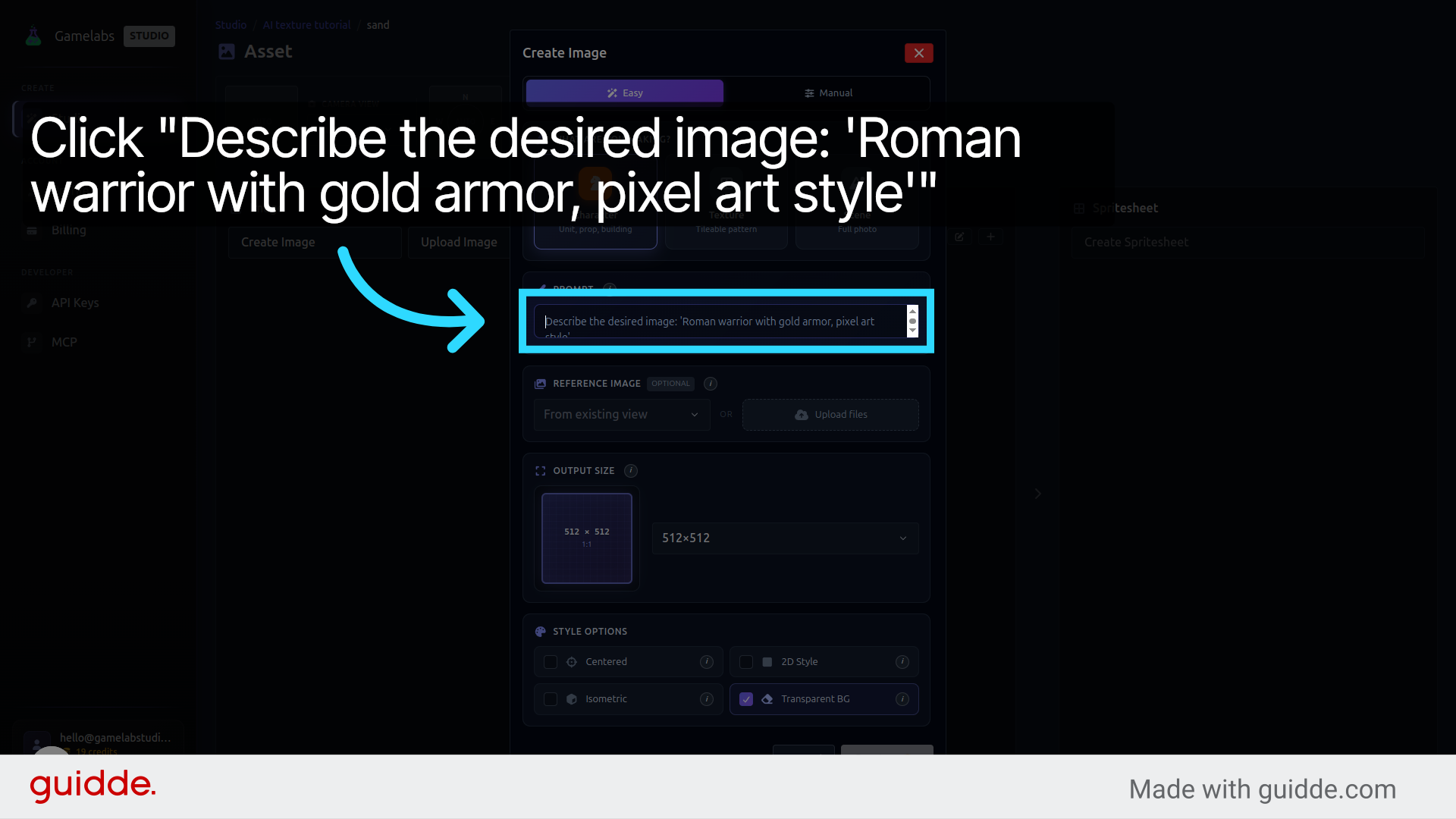
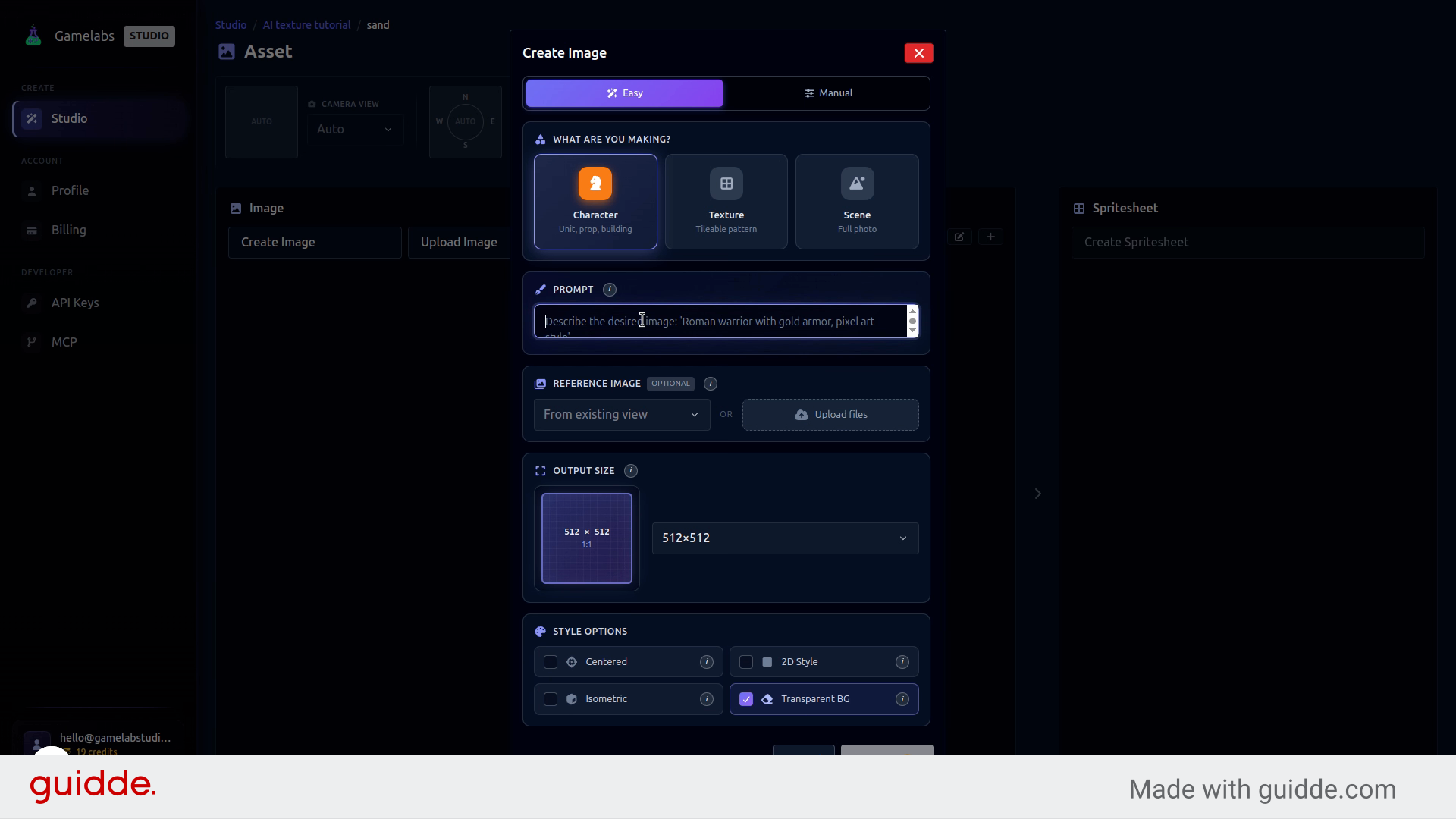
Click Create Image to open the generation panel. Enter a description of the surface you want—for example, "Lush green grass with scattered small wildflowers, top-down view". Then add keywords that define the look and feel: photorealistic, organic, natural variation. The more specific you are, the closer the result matches your vision.
Write Your Prompt Add Keywords

5. Enable the Tileable Setting
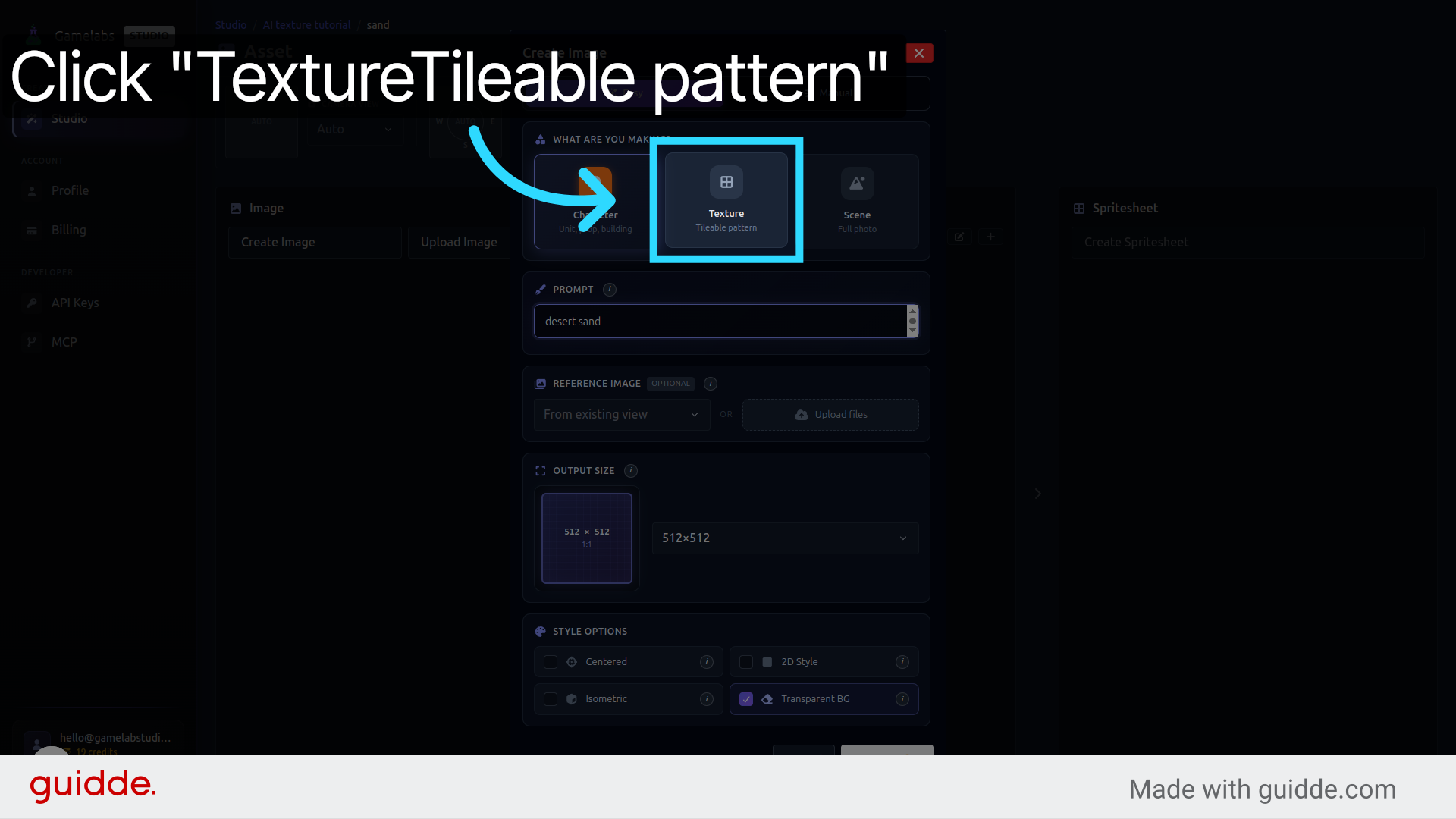
This is the key step. Select the TextureTileable pattern option before generating. This tells the AI to produce an image whose edges match up perfectly when repeated—no manual seam work required.
Enable Tileable Setting

6. Generate the Texture
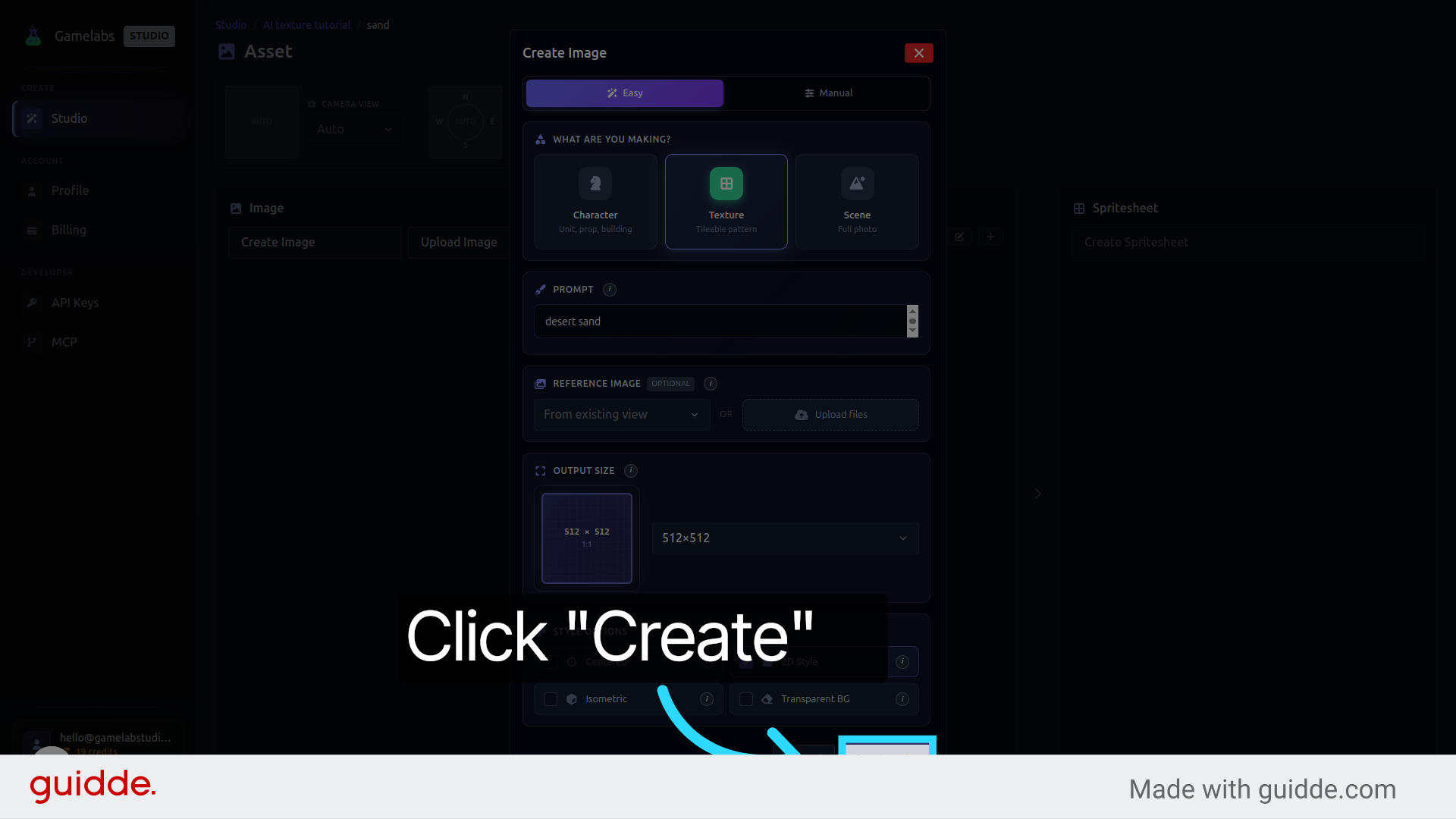
Click Create to generate the texture. The AI will interpret your prompt and produce a seamless result in a few seconds.
Generate the Texture

7. Preview the Tiling
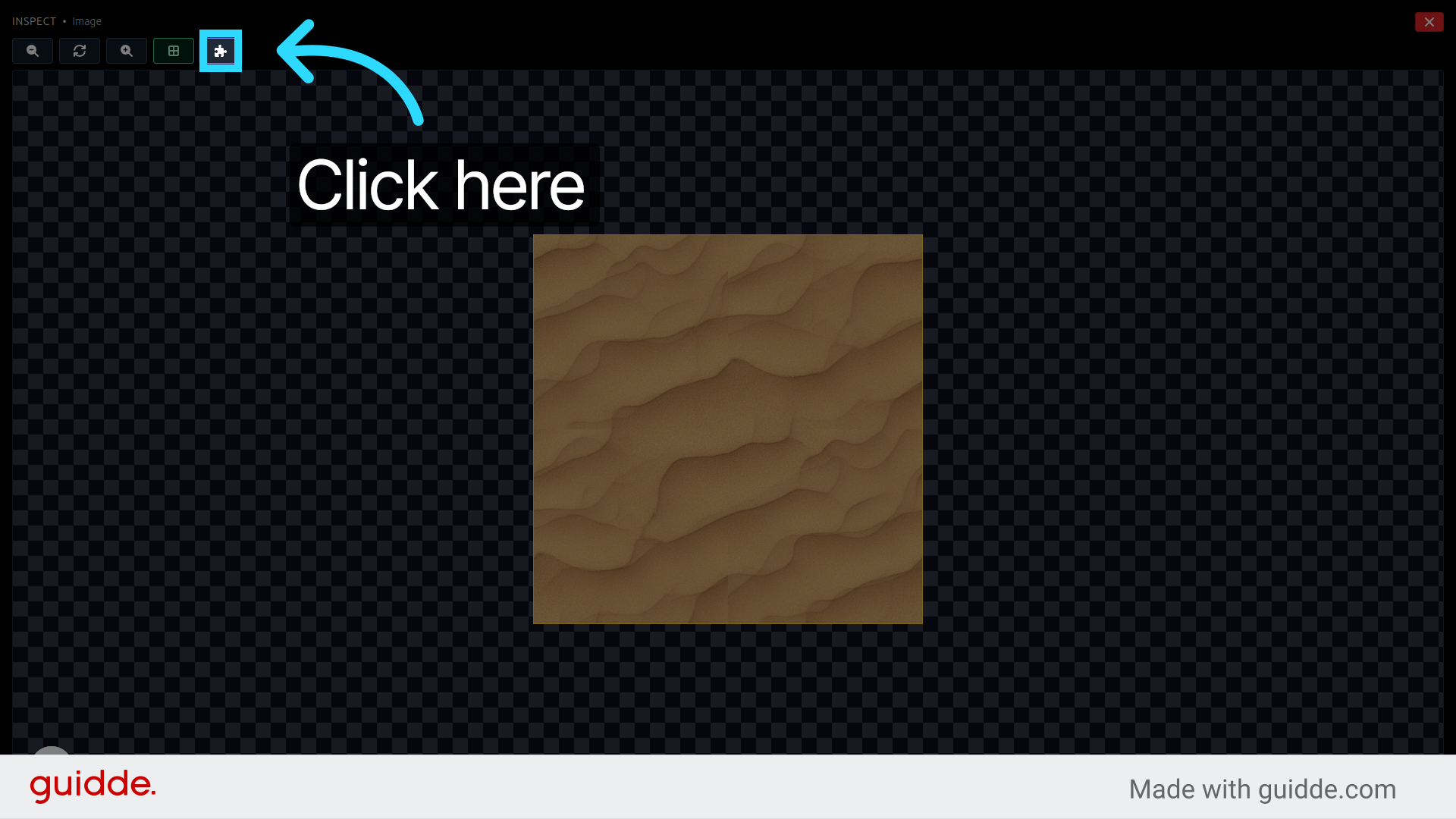
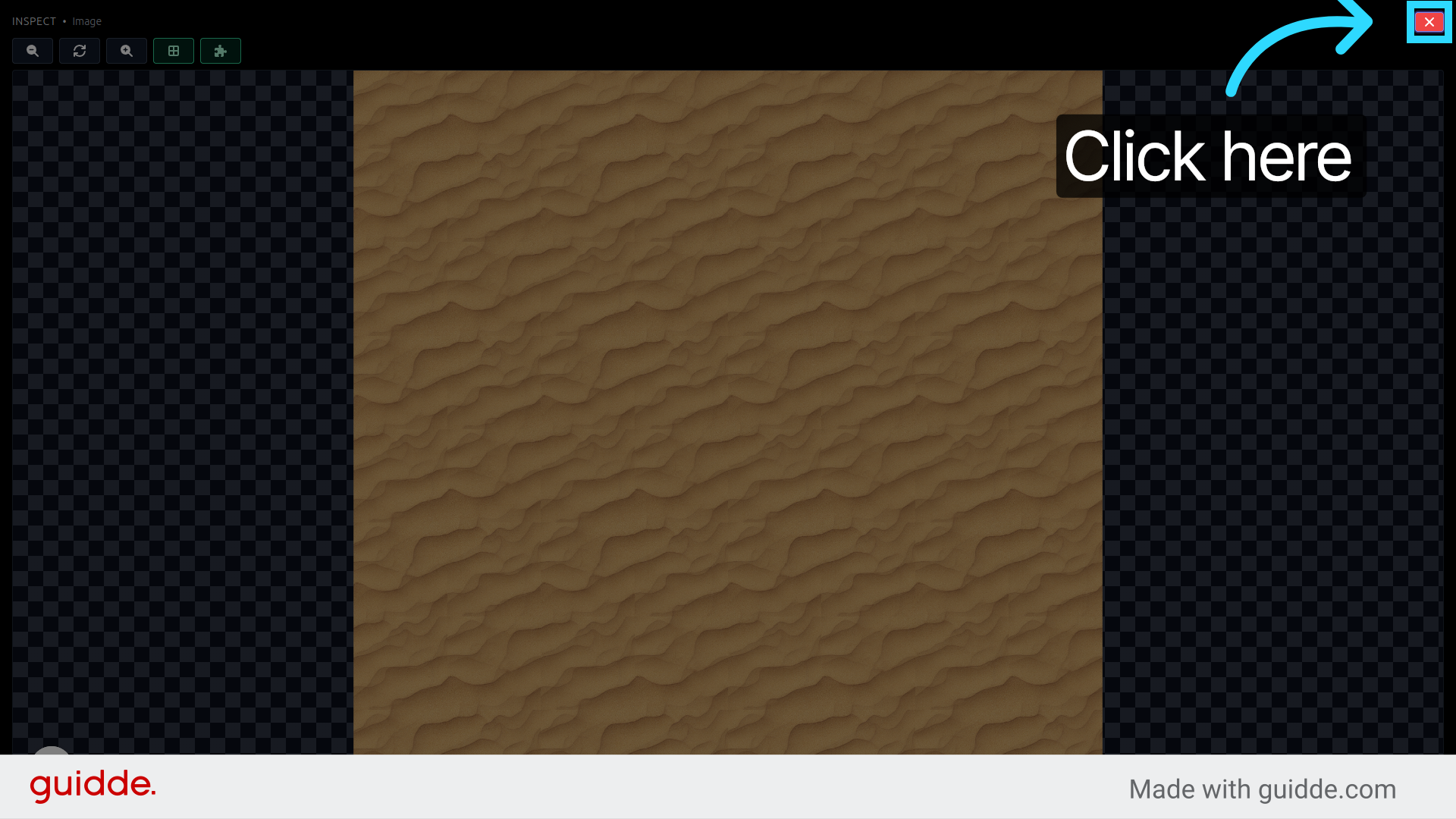
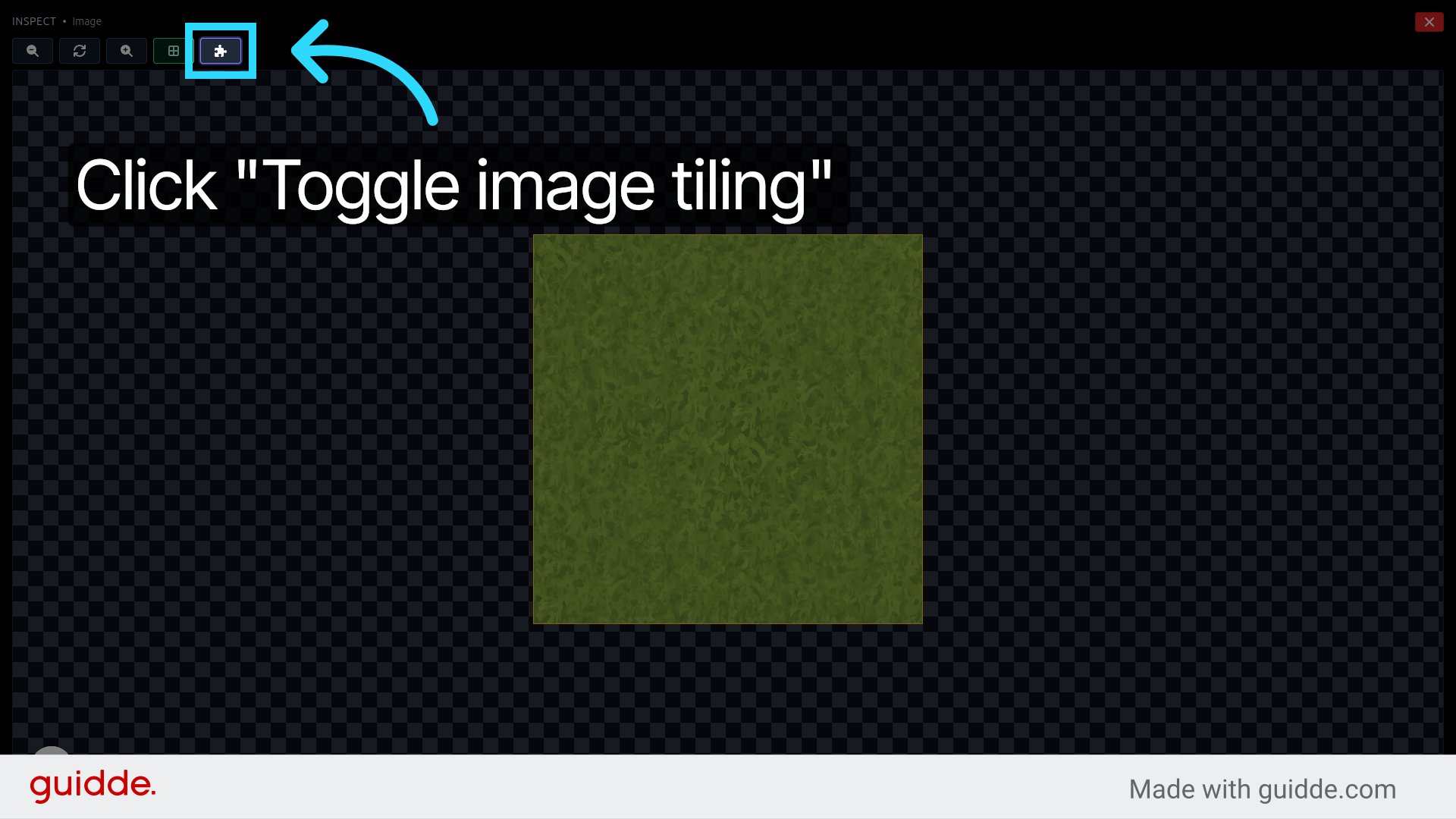
Click the generated texture to open it, then hit Toggle image tiling to see how it looks when repeated across a surface. This is the fastest way to spot any visible seams or repeating patterns that break the illusion. If everything looks good, close the preview.
Preview the Tiling Tiling Preview Result

8. Download the Texture

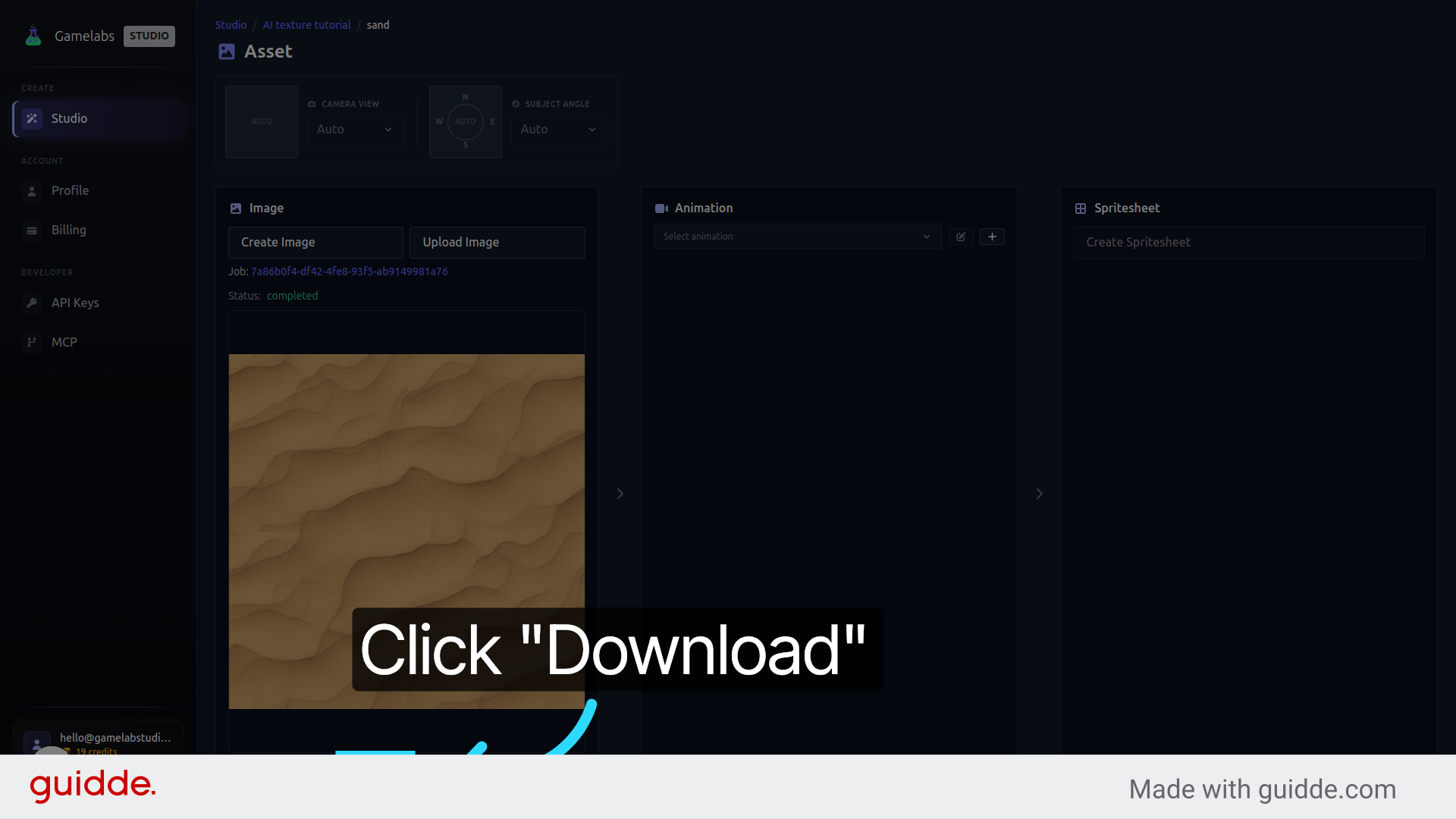
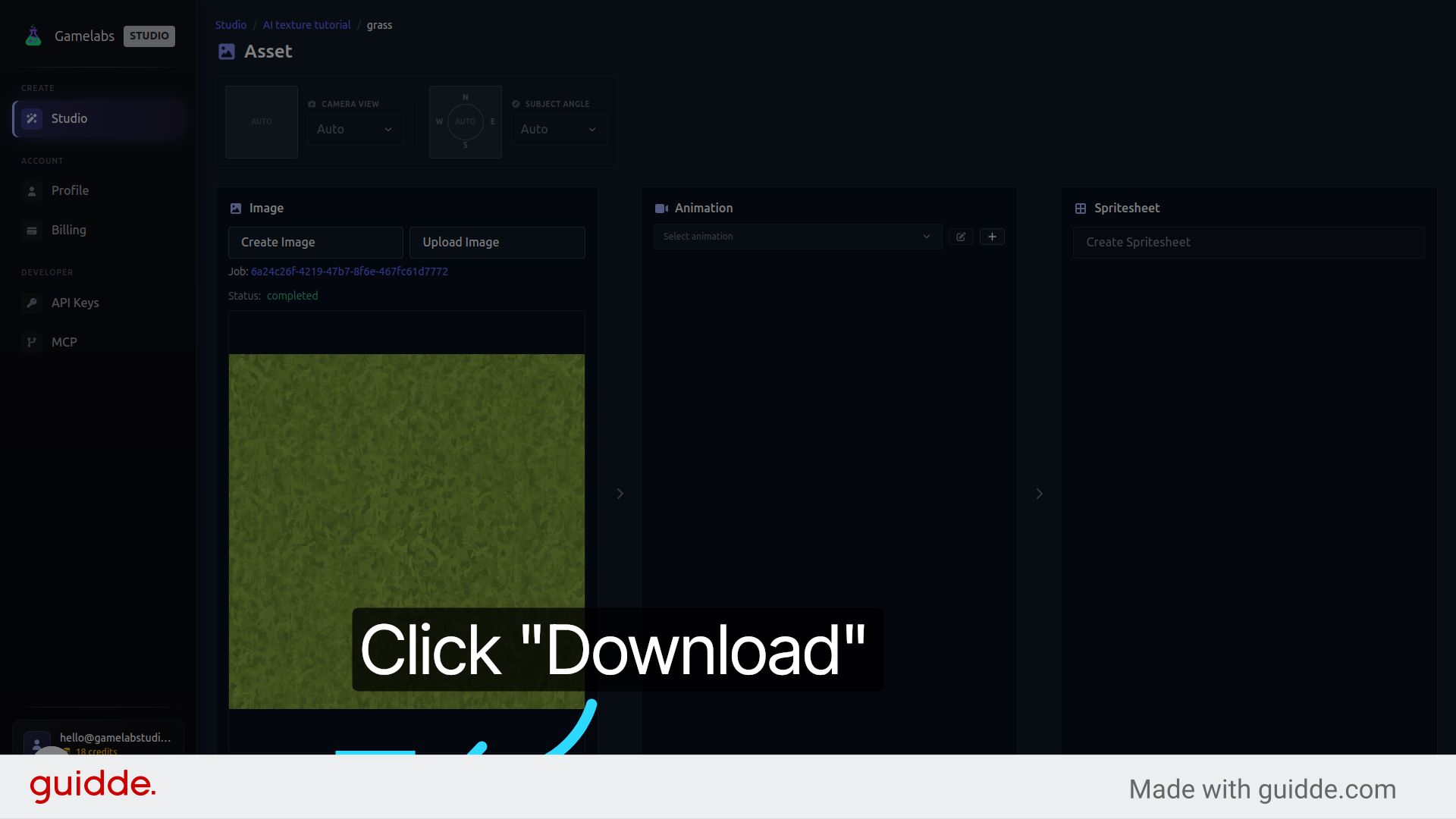
Click Download to save the texture to your device. The file is ready to drop into Unity, Godot, Unreal, or any other engine as a repeating background or terrain material.
Download the Texture

Build Out Your Texture Library

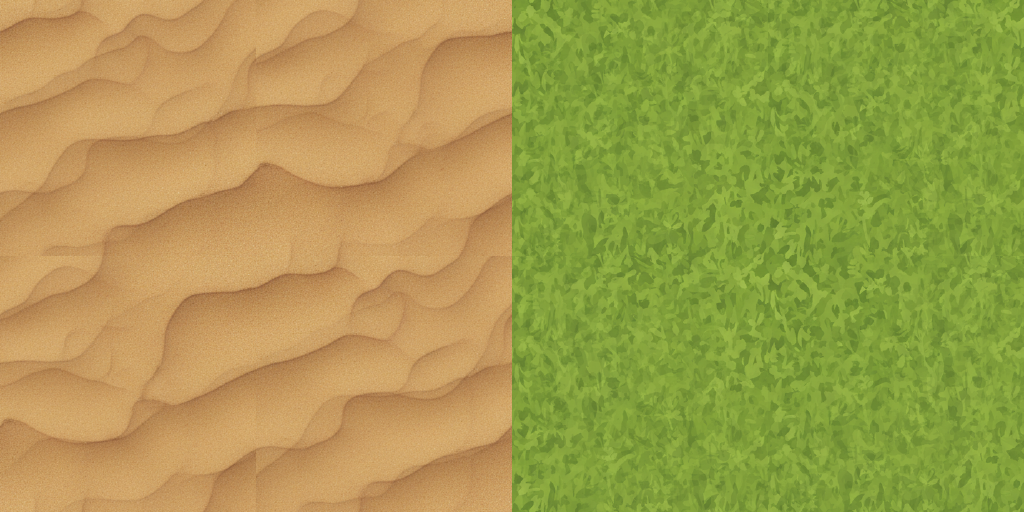
One texture is great, but games need variety. The real payoff comes from repeating this workflow to quickly build a full library of surfaces—different stone types, dirt paths, sand, water, sci-fi plating—all within the same project.

9. Add More Assets to the Same Project
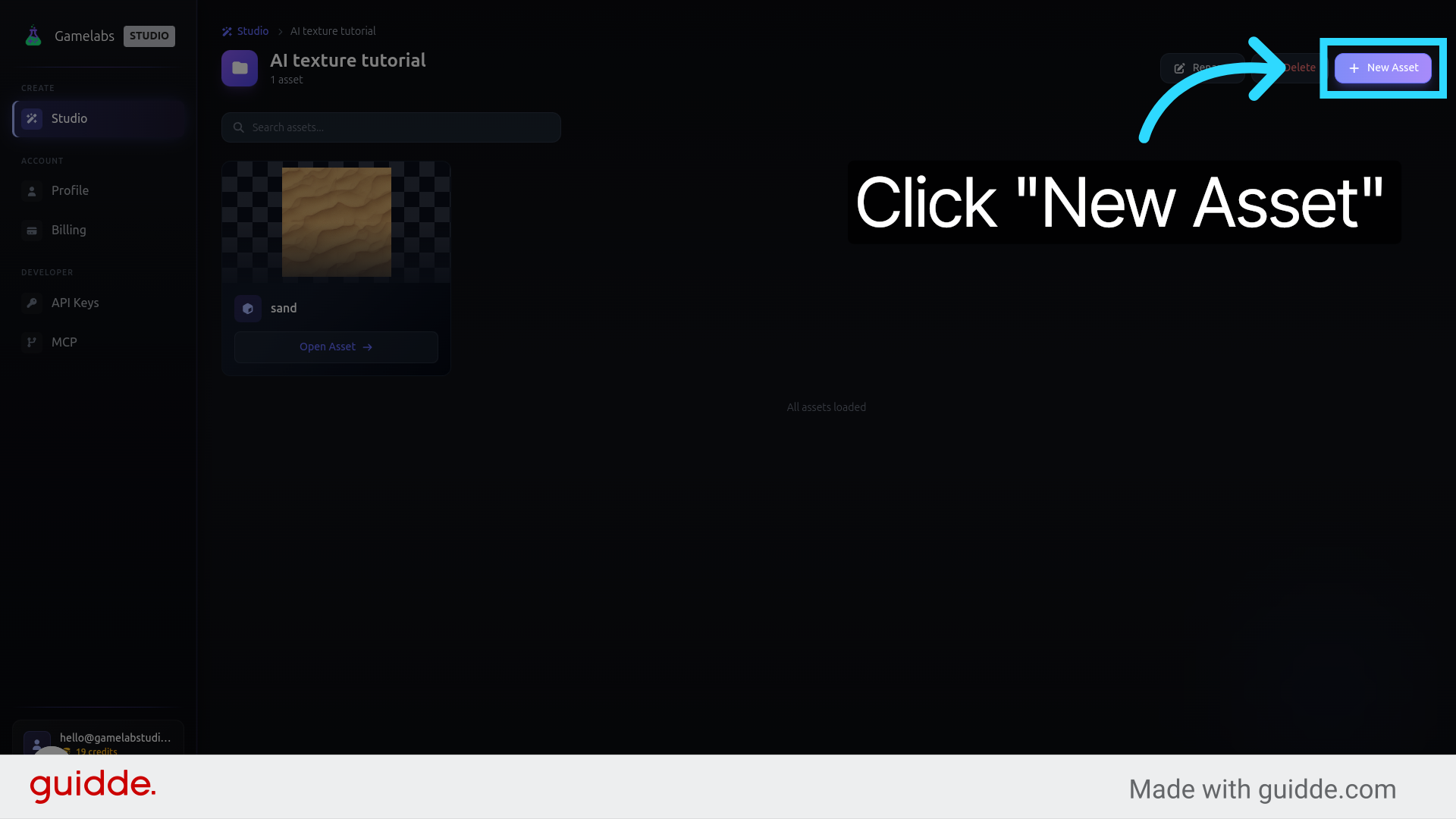
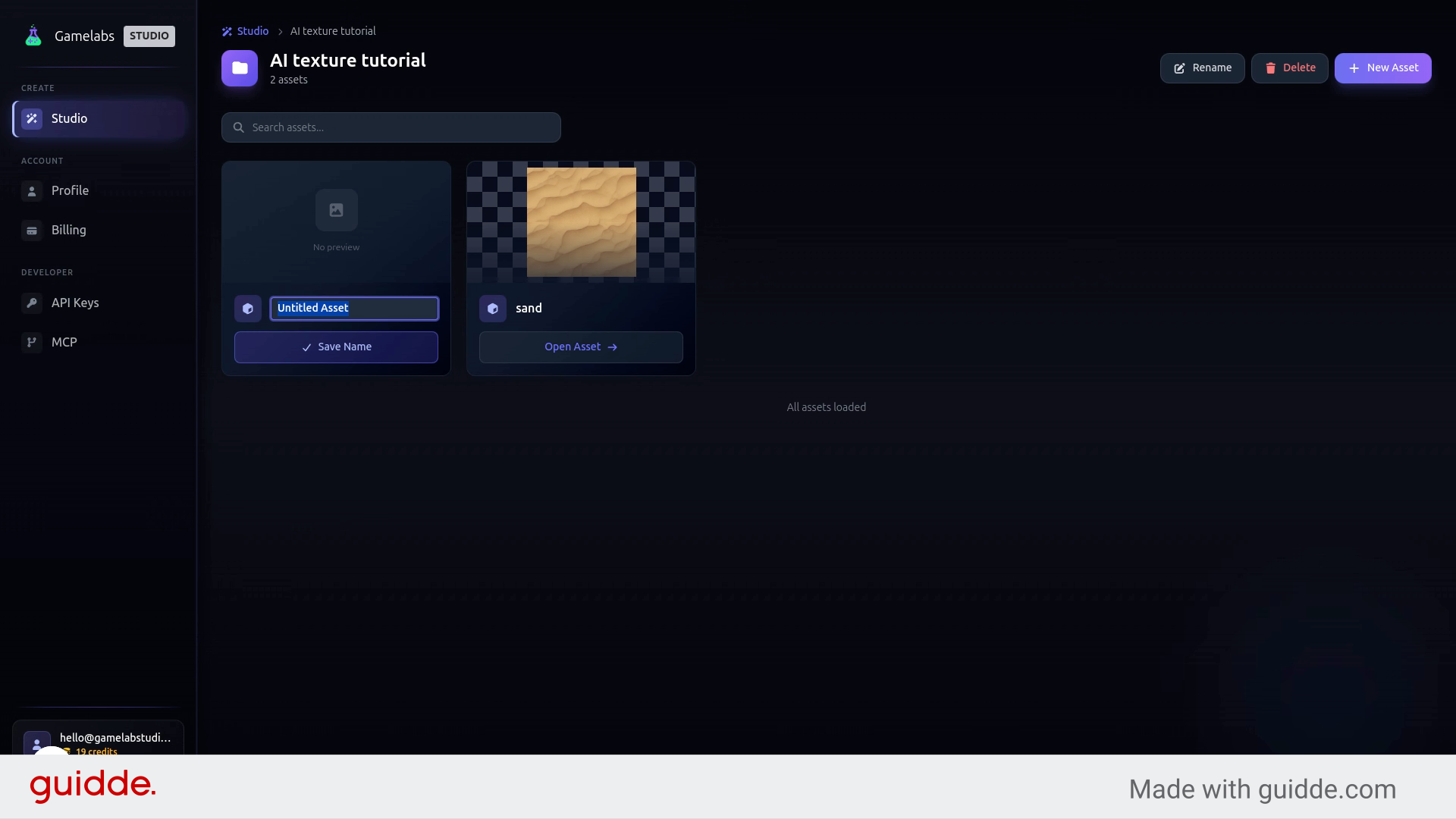
Navigate back to your project, click New Asset, and name your next texture (e.g., "Grass"). Open it and repeat the same generation flow: write a prompt, add keywords, enable TextureTileable, and hit Create.
Add Another Asset Name the Asset

10. Preview and Download

Once the texture generates, use the tiling preview to verify it looks right, then download. Each new texture takes just a minute or two, so you can build out an entire biome's worth of surfaces in a single sitting.
Preview Tiling Download Final Texture

What's Next

You now have seamless, game-ready textures that tile without visible seams. From here, try experimenting with different art styles: pixel art, painterly, photorealistic, or generate variations of the same material (light grass, dark grass, dried grass) to add visual depth to your environments. The entire workflow from prompt to download takes under two minutes per texture, so building a complete asset library is no longer the bottleneck it used to be.

Enjoyed this article?
More articles