Using Gamelabs Studio MCP in Cursor
Back to Blog

Using Gamelabs Studio MCP in Cursor

Gamelabs Studio 4 min read

Once the Gamelabs Studio MCP server is connected to Cursor, your coding agent can call Gamelab’s generation and studio tools the same way it reads files or runs terminal commands: through natural language in chat. You do not need to memorize tool names or wire up requests by hand.

If you have not added the server yet, start with our MCP setup guide, then return here for day-to-day usage patterns.

What Changes in Your Workflow

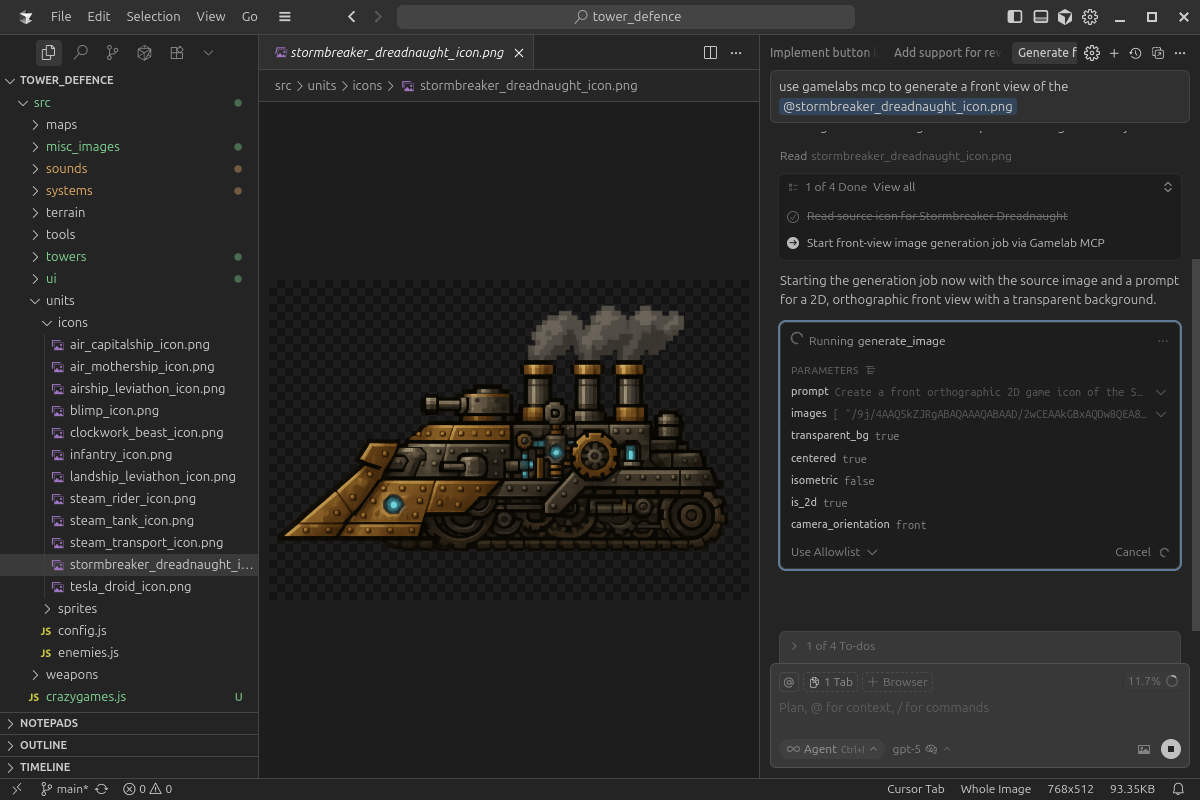
With MCP enabled, Cursor’s agent sees Gamelab as a set of tools alongside the rest of its toolkit. You describe what you want for your game or repo—concept art, an animation from a sprite, a spritesheet, assets organized in a project—and the agent decides which operations to run, in what order, and how to handle responses (for example, waiting for a job to finish before downloading a file).

You Describe Outcomes, Not API Steps

You do not need to say “call generate_image with these exact parameters.” Instead, state the goal in normal language. The model already receives documentation for each tool from the MCP connection; it can map your intent to the right calls.
Use: “Create a 512×512 pixel-art hero facing right with a transparent background, suitable for a platformer.”
Use: “Turn the last generated character into a short walk cycle and then give me a spritesheet for my engine.”

The Agent Can Use Your Codebase as Context

Point the agent at relevant files or folders—asset naming conventions, resolution constants, animation JSON, or README notes—and ask it to align Gamelab output with that structure. It can infer art direction, dimensions, transparency needs, and how you want files named or organized without you repeating every rule in one giant prompt.
Use: “Using assets/characters/characters.json and our existing sprite style and sizes, generate spritesheets for the rest of the charecters.”

Practical Patterns in Cursor

These patterns work well in Agent mode (or any chat mode where tool use is allowed). Keep requests specific about style, size, transparency, and how the asset fits your game; leave orchestration to the agent.

One-Shot Asset Creation

Ask for a single deliverable: an image, a video pass, or a spritesheet. The agent can start a generation job, track completion, and retrieve the result when it is ready—without you managing polling manually in the UI.

Multi-Step Pipelines in Plain English

Chains such as image → motion → spritesheet are a natural fit: describe the pipeline once and ask the agent to keep the same logical asset across steps (so outputs stay linked in your Gamelab project). You can say “continue from the previous job” or “use the image we just generated as the source”; the agent connects the steps using the identifiers returned from each operation.

Reference Material From the Web or Your Repo

If your workflow allows it, you can ask the agent to incorporate reference images or descriptions that already exist in your project, or to match a style defined in your docs. The agent translates that into the inputs Gamelab expects (for example, passing image data in a supported form rather than unsupported local paths—your agent can read files and convert as needed).
Tip: If something fails, paste the error into chat and ask the agent to adjust inputs (size, format, or prompt). Iteration is normal for generative workflows.

Getting Reliable Results

Be Explicit About Constraints

Dimensions, transparency, perspective (for example isometric vs. side view), palette or “pixel art” constraints, and loop length for animation all reduce back-and-forth. You still phrase everything conversationally; you are guiding the model, not writing an API payload.
Avoid: “Make a nice character.” (too vague)
Use: “Our main character holding a crossbow. Left side view 256×256 pixel art, transparent background.”

Use the Studio When You Want Hands-On Control

MCP is ideal when you want the agent to stay in the editor. The Gamelab Studio web app remains the place for visual browsing, manual tweaks, and reviewing history. Both surfaces talk to the same account and projects.

Troubleshooting at a Glance

  • Tools missing or grayed out: Confirm the MCP server is enabled in Cursor Settings → Tools & MCP and shows a healthy connection (see the setup guide).
  • Auth errors: Verify your API key on the MCP Integration page in the Gamelab dashboard and that your Cursor config still includes the X-API-Key header.
  • Slow or async jobs: Ask the agent to wait for completion and report back with links or data you can paste into your game; generation is often asynchronous by design.

With Gamelab MCP connected, Cursor behaves less like a text-only assistant and more like a teammate that can produce and organize game art from inside your repository. Describe what you need, lean on your codebase for context, and let the agent choose the right tools—then refine in chat until the output matches your project.

Enjoyed this article?
More articles