How to generate sprite sheets for Game Maker with AI
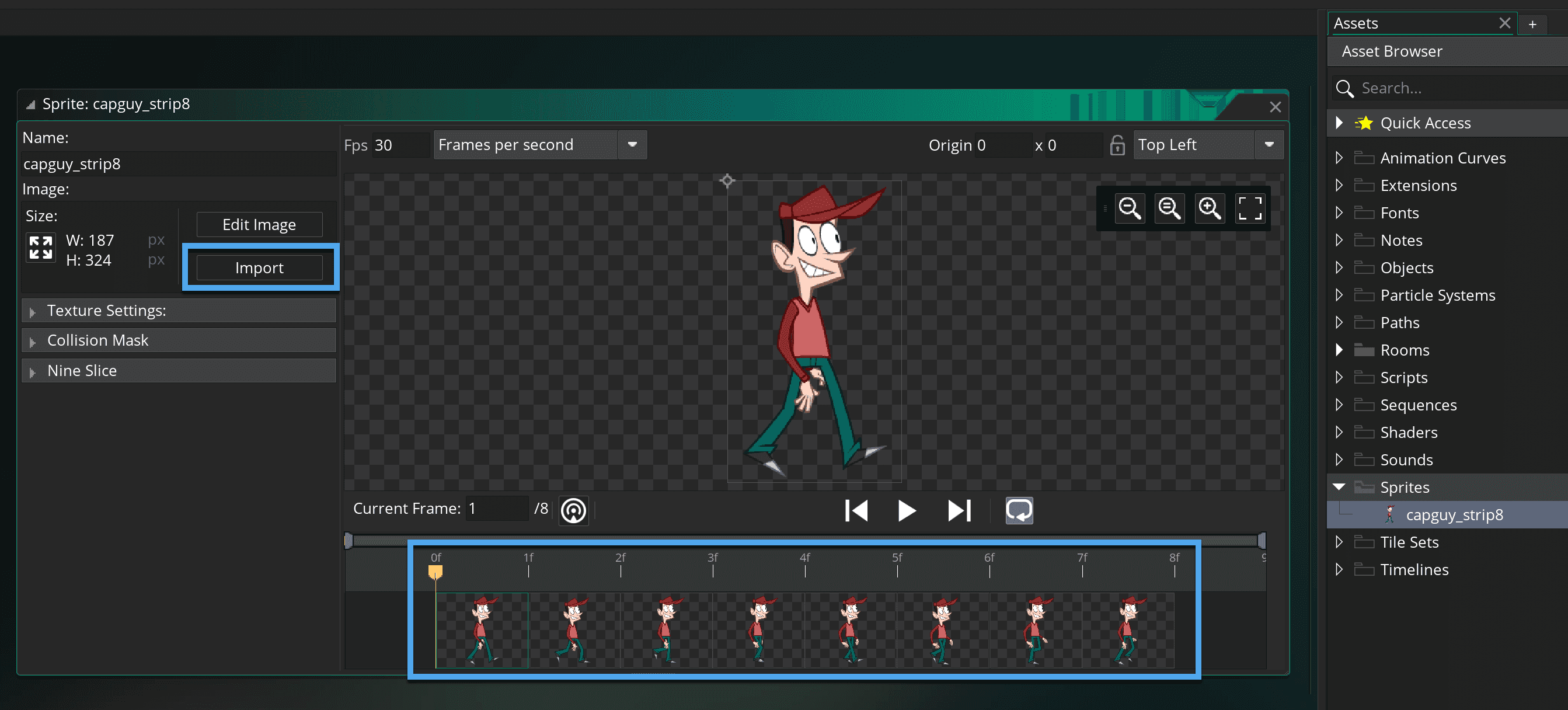
In this guide, we walk through the full process from downloading the spritesheet PNG and its metadata out of Gamelab Studio, to getting a fully animated sprite playing in GameMaker
Insights about game asset generation, creative AI, and tips to get the most out of Gamelab.
In this guide, we walk through the full process from downloading the spritesheet PNG and its metadata out of Gamelab Studio, to getting a fully animated sprite playing in GameMaker
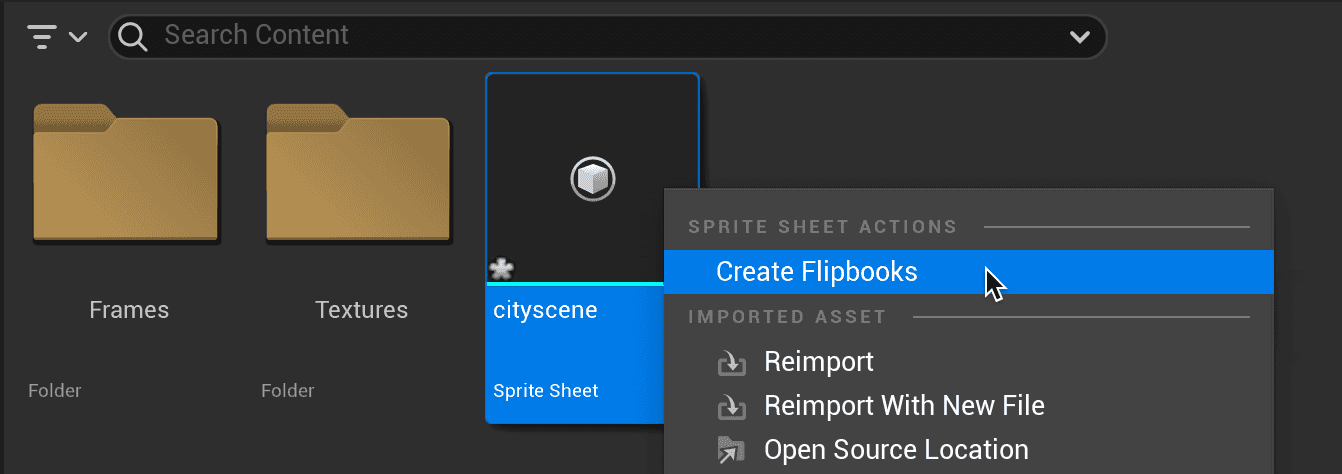
In this guide, we walk through the full process from downloading a Gamelab Studio spritesheet and reading its metadata, to getting a fully animated Paper2D Flipbook playing inside Unreal Engine
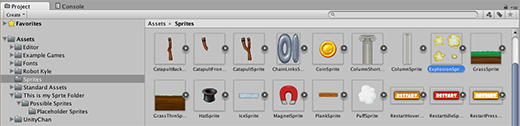
In this guide, we walk through the full process from downloading the spritesheet PNG and its metadata out of Gamelab Studio, to getting a fully animated sprite playing in Unity
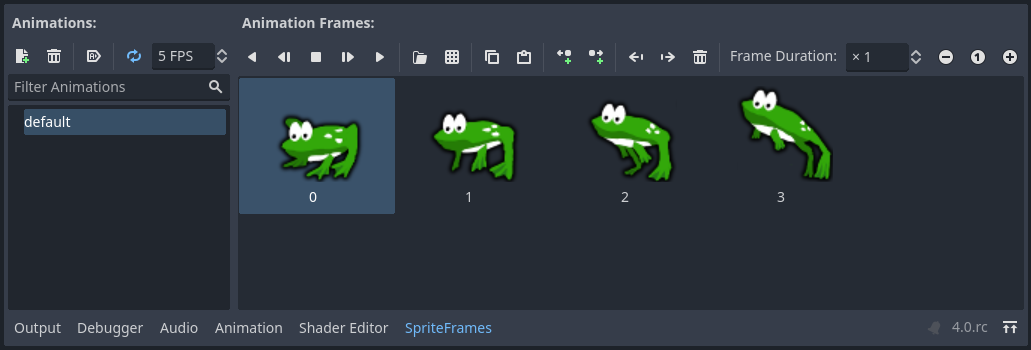
In this guide, we walk through the full process from downloading the spritesheet PNG and its metadata out of Gamelab Studio, to getting a fully animated character playing in Godot 4.
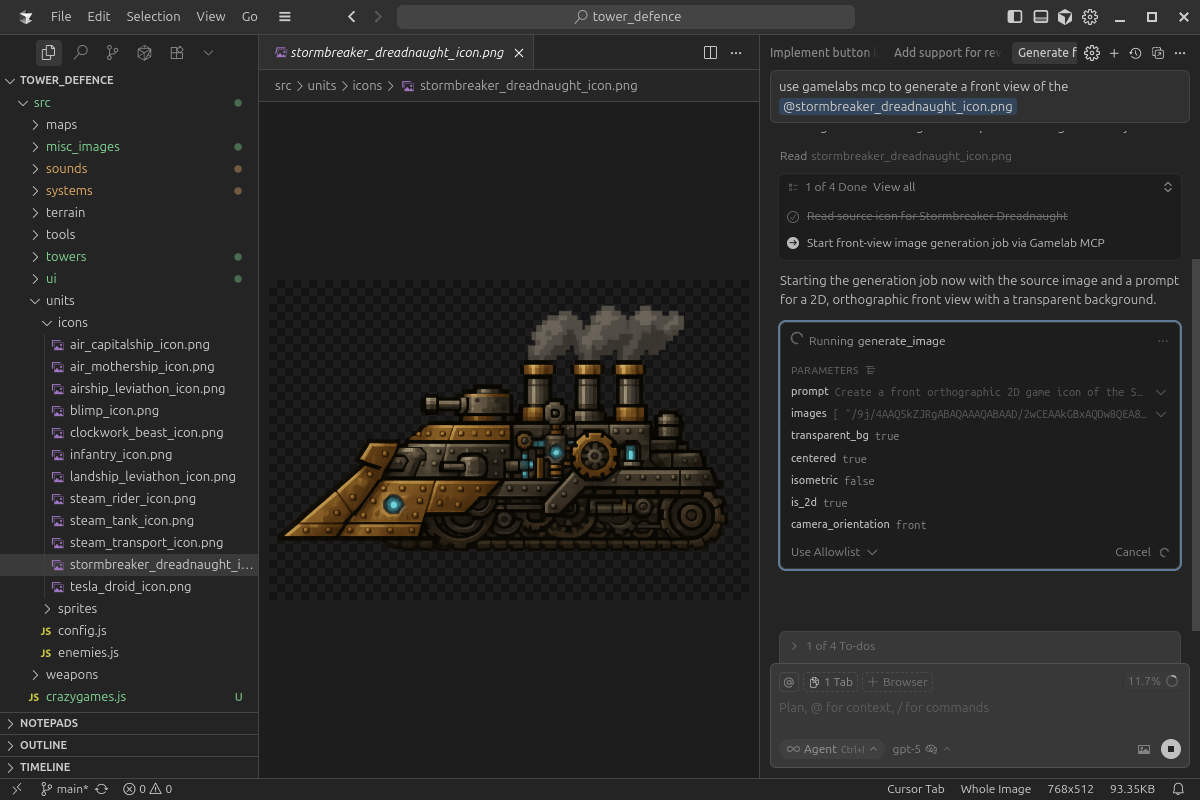
Learn how to use Gamelab Studio’s MCP from Cursor after you’re connected: describe goals in plain language, let the agent pick tools and chains, and use your repo as context.
In this guide, we walk through how to connect Gamelab Studio's MCP server to your editor of choice. Once configured, your AI assistant gains access to Gamelab's full generation pipeline.
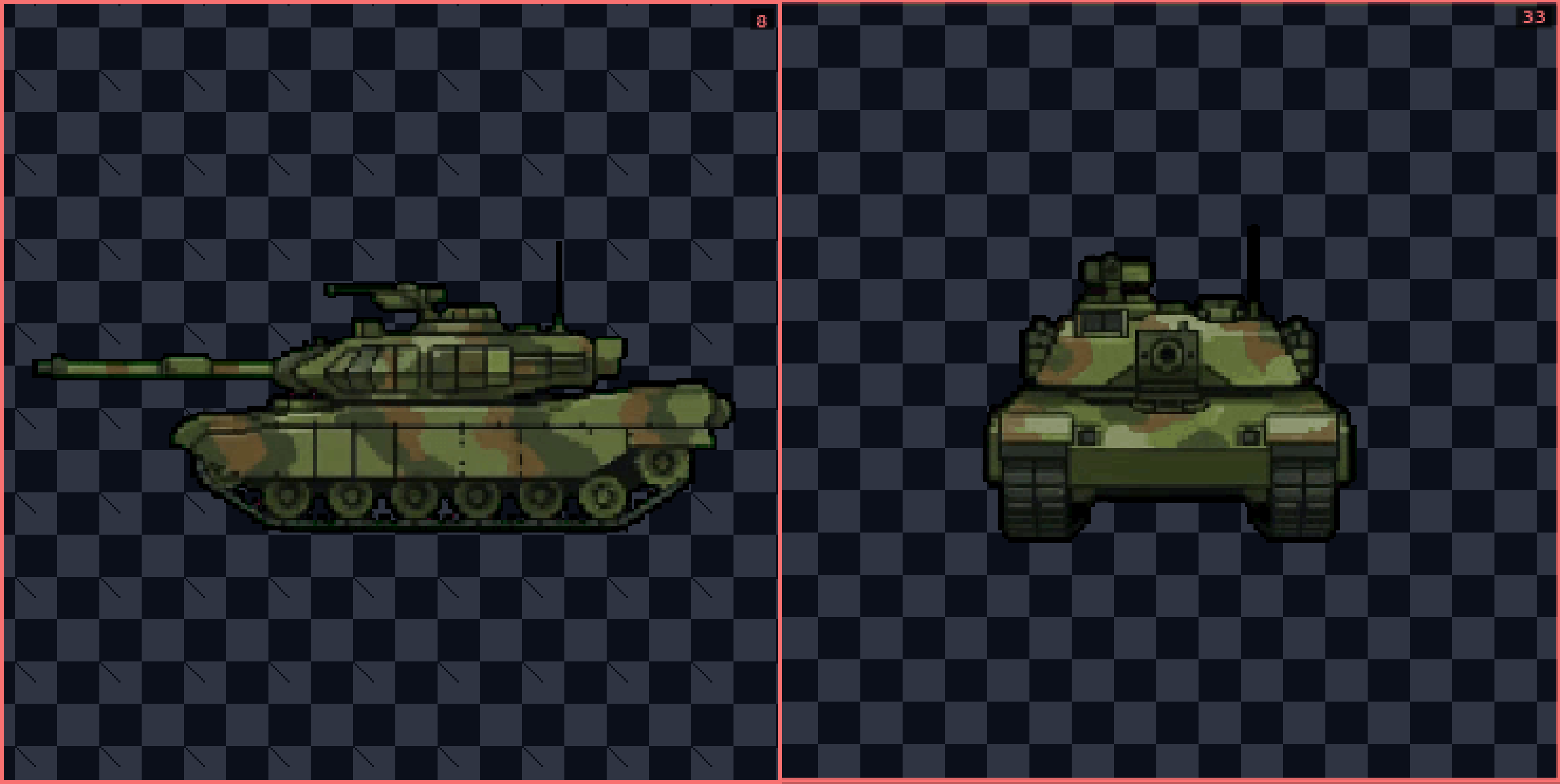
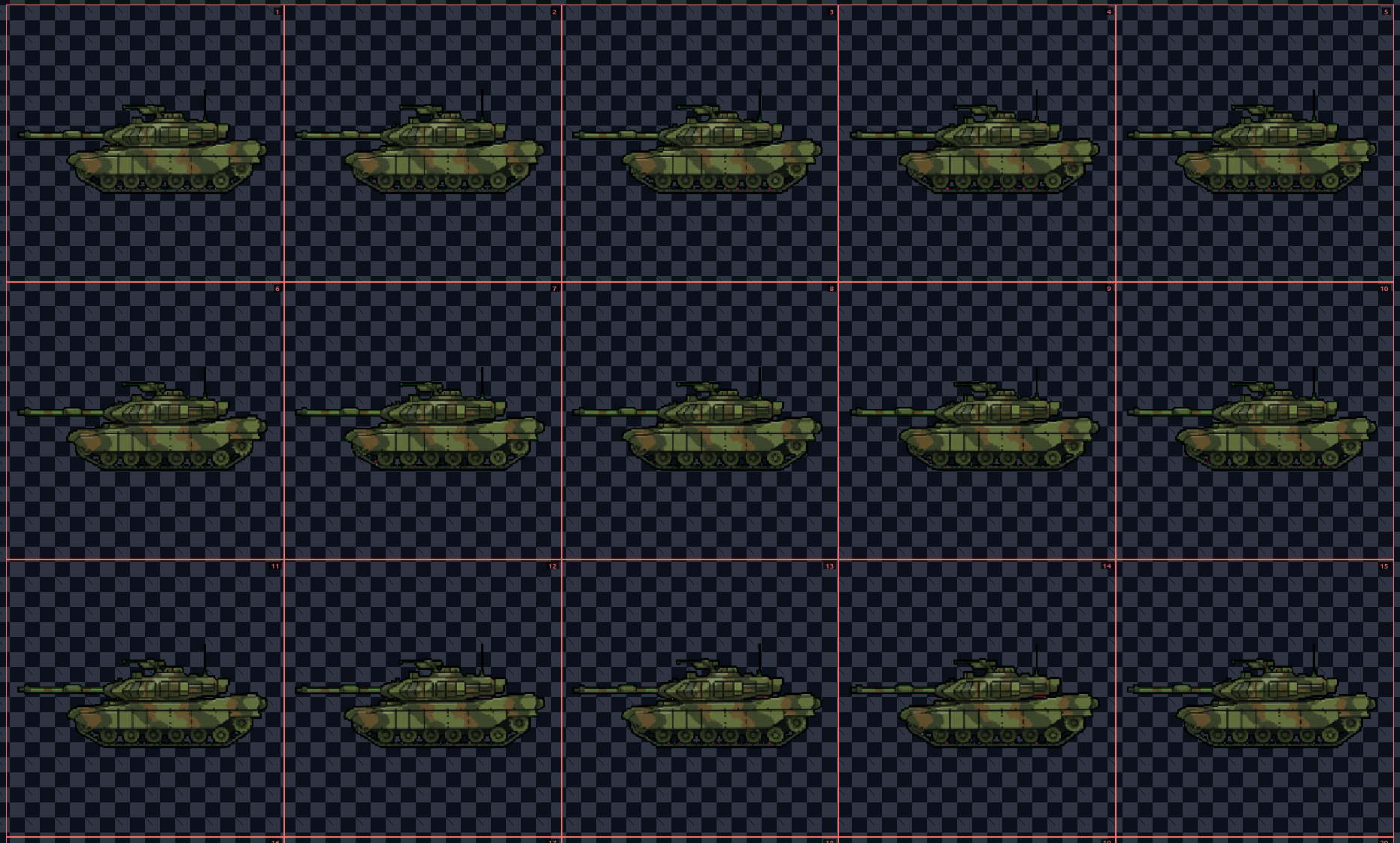
This tutorial demonstrates how to create different angles for your spritesheet using AI in Gamelabs Studio. We will begin with the Tank asset we already created for the transparent spritesheet tutorial.
This tutorial guides you through creating a spritesheet with a transparent background using Gamelabs Studio's AI tools.