
You are probably prompting AI art generators incorrectly, and some of the most repeated advice online makes the problem worse.
Image, video, and sprite-sheet models are not interchangeable with chatbots. They do not reliably turn every sentence into a separate deliverable, maintain a character automatically, or produce game-ready animation just because the prompt contains the words “sprite sheet.”
This guide exposes the most common misconceptions, explains what actually happens, and shows how to build prompts and workflows that produce more usable results.
For more generative AI guidelines read our Prompting Guide.
Misconception #1: An Image Generator Works Like an LLM
People often talk to an image generator as though they are negotiating with a chatbot. They explain their thought process, apologize, ask questions, and bury the visual request inside conversational filler.
Modern image tools can understand natural language, so complete sentences are not inherently bad. The problem is including language that does not describe the desired image. A rendering model needs a clear visual target: subject, action, environment, composition, style, lighting, and important constraints.
Avoid: “Hi! Could you please make me an image? I was thinking it might be cool if there was some kind of knight, but use your judgment.”
Use: “Full-body medieval knight standing in a misty pine forest, silver plate armor, blue cape, eye-level composition, cold cinematic lighting, realistic fantasy concept art.”
Misconception #2: Asking for Five Images Produces Five Separate Files
Writing “create five images” inside an image prompt does not necessarily trigger five generation jobs. The prompt describes the content of an image, so the model may create one collage, a contact sheet, or five scenes squeezed onto one canvas.
Some applications and APIs have a separate control for the number of outputs. For example, certain image APIs provide an output-count parameter. That control, not a sentence embedded in the visual prompt, is what requests separate files.
Avoid: “Generate five separate pictures of a wizard: one running, one jumping, one attacking, one sleeping, and one casting a spell.”
Better workflow: Run five separate generations, one action per generation, while reusing the same approved character reference.
Misconception #3: A Longer Prompt Is Automatically Better
Prompt length is not the same as prompt quality. A long prompt can contain repeated ideas, conflicting styles, impossible geometry, and details too small to represent clearly.
OpenAI's image generation guidance recommends beginning with a clear core request and refining it through small, targeted revisions. One to three well structured sentences can outperform an unfocused wall of text.
Avoid: “A minimalist, maximalist, realistic, cartoon, watercolor, pixel art warrior in bright darkness with simple but extremely complicated armor.”
Use: “Side view pixel art warrior wearing scratched bronze armor. Limited 16 color palette, strong silhouette, neutral standing pose, plain background.”
Misconception #4: “Make It Look Good” Is a Style Direction
Words such as “good,” “awesome,” and “professional” are subjective. Replace them with visible properties that can actually appear in the frame.
Avoid: “Make the spaceship look cooler and more professional.”
Use: “Angular military spacecraft, matte graphite hull, recessed blue engine lights, surface paneling, three quarter front view, dramatic rim lighting.”
Misconception #5: One Successful Image Guarantees Character Consistency
Repeating a character's name or description does not lock that character's identity. Facial structure, clothing details, proportions, colors, and accessories can drift between independent generations.
First approve an anchor image. Reuse it as a character reference, keep the important identity constraints explicit, and make one controlled change at a time. When supplying several references, identify the role of each one instead of assuming the model will infer it.
Use: “Image 1 is the character identity reference. Preserve the same face, hairstyle, red jacket, body proportions, and color palette. Change only the pose to a side-view running pose.”
Misconception #6: An Animation Prompt Is Just an Image Prompt with the Word “Moving”
An image prompt defines appearance. A useful animation prompt must also define motion: what moves, how it moves, how quickly it moves, the order things happen, and what the camera does.
Runway's prompting documentation separates video instructions into visual descriptions and motion descriptions. A reliable structure is: shot type, subject, action, environment, visual style, and camera movement.
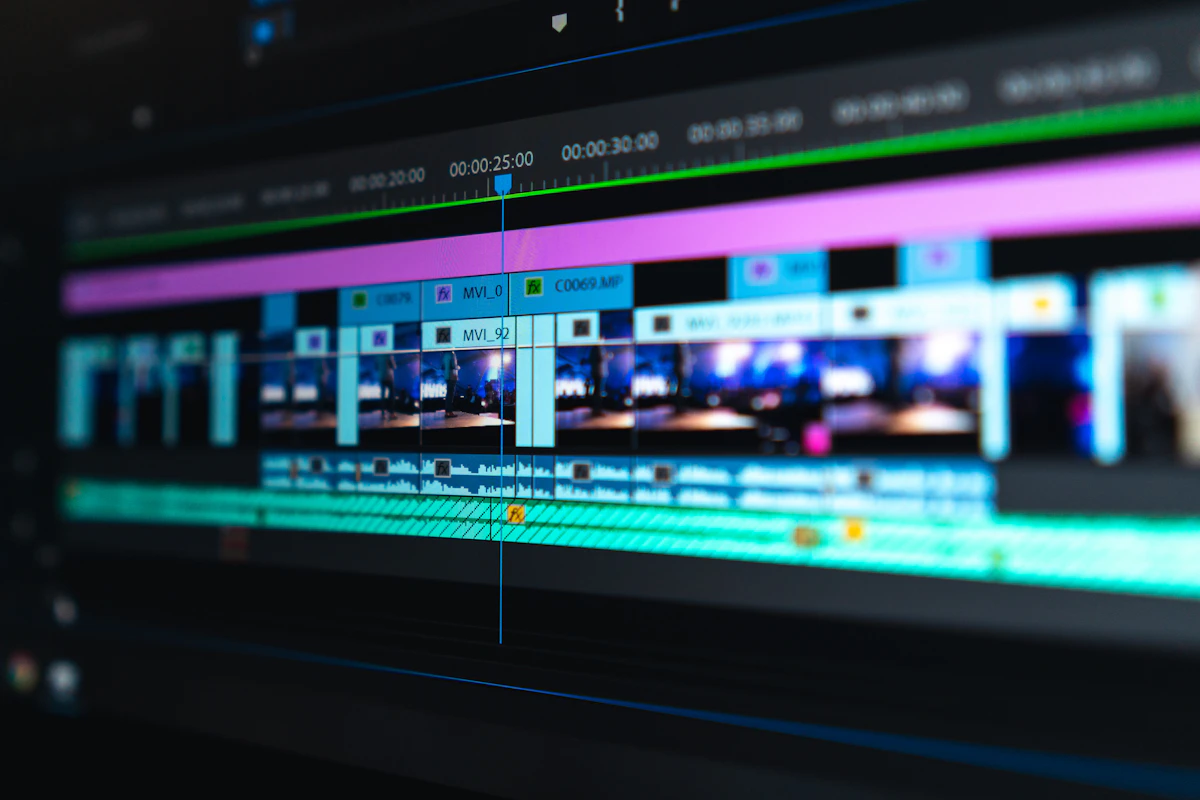
Video generation requires directions for action, timing, framing, and camera movement.
Avoid: “A cinematic fox in a forest, moving.”
Use: “Medium tracking shot of a red fox running steadily through a misty forest. Its fur and nearby ferns move in the wind. The camera follows from the side at the fox's speed.”
Misconception #7: More Actions Create a More Exciting Animation
Short AI video clips have limited time to establish subjects and complete actions. Packing an entire movie scene into one prompt often causes actions to overlap, disappear, or transform into one another.
Unless the selected model offers reliable timeline controls, focus on one primary action and one simple camera movement per shot. Generate separate shots for separate story beats, then edit them together.
Avoid: “The knight runs forward, fights three monsters, jumps over a wall, removes his helmet, smiles, and rides away.”
Use: “The knight runs toward the camera through falling ash. Slow handheld tracking shot.”
Misconception #8: Image-to-Video Will Preserve Every Detail
A source image gives the video model a strong starting point, but it does not freeze every design detail. Faces, hands, clothing, weapons, logos, and backgrounds may change as the model invents unseen angles and intermediate frames.
Start with an image that already has the correct composition. Request motion that is compatible with that image, avoid unnecessarily large rotations, and explicitly identify the details that must remain stable.
Use: “The character breathes gently while the cape moves slightly in the wind. Fixed camera. Preserve the face, armor design, body proportions, and background composition.”
Misconception #9: Typing “Sprite Sheet” Produces a Game-Ready Asset
A sprite sheet is not merely a picture containing several poses. It is a technical asset with equally sized cells, predictable frame order, stable character scale, consistent pivots, clean edges, and a shared baseline.
General image models may draw something that resembles a sprite sheet while changing the character's height, clothing, silhouette, spacing, or foot position in every cell. A game engine can slice that image successfully and still produce an animation that shakes, slides, or “breathes” unnaturally.
Gamelabs Studio has a built in workflow to actually create a proper sprite sheet from your AI game assets and animations.

A real sprite sheet uses predictable cells and consistent frame placement.
Source: Wikimedia Commons.

Avoid: “Create a complete 8 direction, 12 frame walk, attack, idle, jump, and death sprite sheet.”
Better workflow: Approve one character anchor, create one direction and one animation at a time, extract the usable frames, normalize their dimensions, align their pivots, and assemble the final sheet programmatically.
Misconception #10: “Pixel Art” Automatically Means Clean Pixels
Many standard AI-generated “pixel art” images like from ChatGPT or Nano Banana are ordinary high-resolution illustrations that imitate a pixelated appearance. They may contain uneven pixel sizes, partial pixels, soft edges, compression artifacts, and colors that do not align to a real grid.
This can be acceptable for concepts and prototypes, but production assets often require post-processing. Inspect the artwork at its native resolution, reduce or control the palette, snap details to a consistent pixel grid, and scale with nearest-neighbor interpolation.
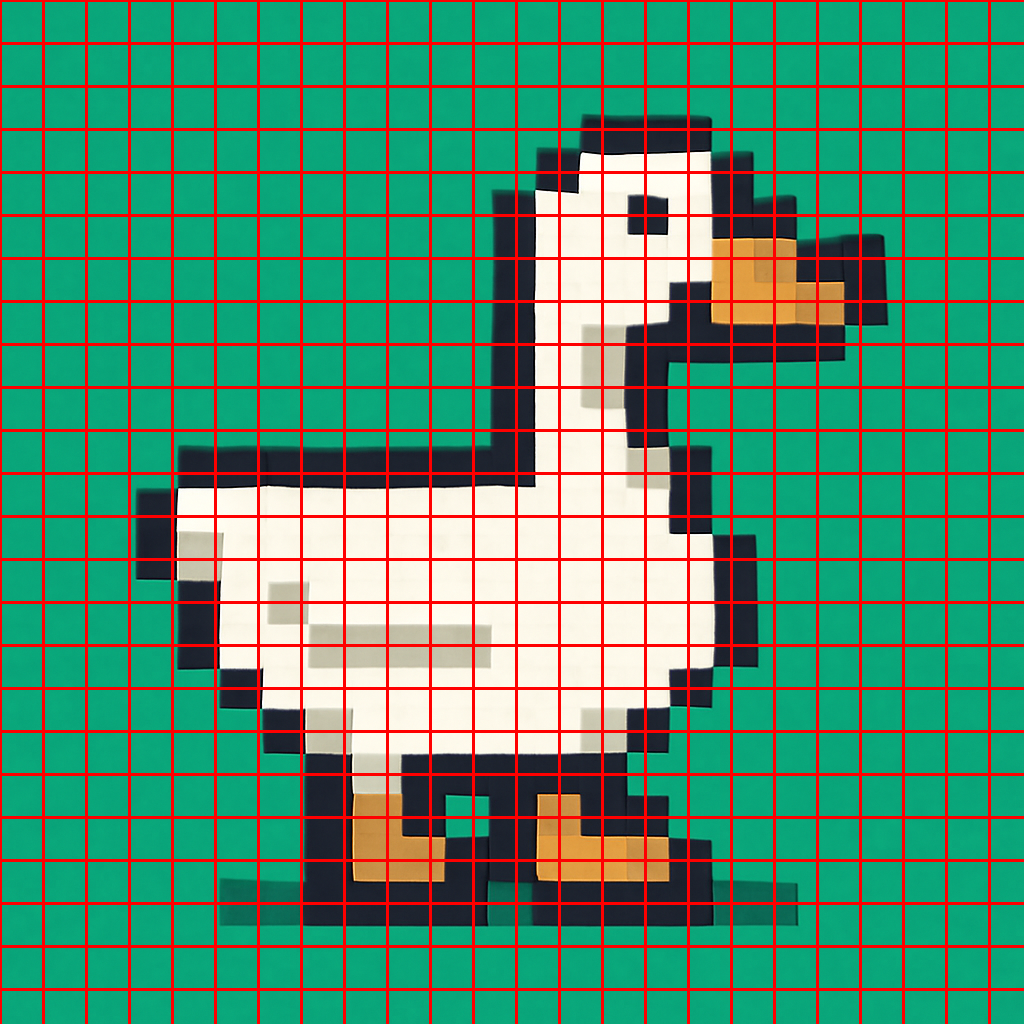
A pixel art appearance does not guarantee a clean, production ready pixel grid.
A Better Generative Asset Workflow with Gamelabs Studio
- Define one deliverable: one image, one shot, one pose, or one animation.
- Describe visible facts: subject, environment, composition, style, and lighting.
- Separate motion from appearance: state subject motion and camera motion clearly for Animation.
- Create an anchor: create a base image before generating different angle variations or animation.
- Iterate narrowly: change one important element at a time.
- Use application controls: output count, aspect ratio, resolution, transparency, and duration should be configured outside the prompt when controls are available.
- Post-process technical assets: crop, align, normalize, remove backgrounds, verify pixels, and test animations.
The biggest misconception is that prompting is a magic spell that replaces an entire creative pipeline. It does not. A prompt establishes a target, references preserve direction, generation creates raw material, and post-processing turns that material into a reliable asset.
Stop asking one generation to solve every creative and technical problem at once. Generate deliberately, refine selectively, and validate the result according to how it will actually be used.