
The Model Context Protocol (MCP) lets Claude Code connect directly to Gamelabs Studio. Once connected, Claude can generate transparent images, animate game assets, create spritesheets, and manage projects without leaving your code.
This guide uses Claude Code’s official MCP command-line setup. Gamelabs currently uses an SSE connection, which Claude Code supports for existing servers.
What You Need
- A Gamelabs Studio account
- Your personal Gamelabs API key
- Claude Code installed and authenticated
- A terminal on macOS, Linux, Windows, or WSL
1. Install Claude Code
According to the official Claude Code documentation, macOS, Linux, and WSL users can install Claude Code with:
curl -fsSL https://claude.ai/install.sh | bash
On Windows PowerShell, run:
irm https://claude.ai/install.ps1 | iex
You can also install Claude Code through npm:
npm install -g @anthropic-ai/claude-code
Confirm the installation:
claude --version
2. Sign In to Claude Code
Open your project directory and start Claude Code:
cd /path/to/your/game
claude
Follow the browser authentication instructions if Claude Code asks you to sign in. When the terminal prompt appears, Claude Code is ready.
3. Retrieve Your Gamelabs API Key
Log In to Gamelabs Studio
Visit gamelabstudio.co and sign in. Create an account first if you do not already have one.
Open the MCP Integration Page
Select MCP from the dashboard sidebar. The page displays your MCP server URL and personal API key.
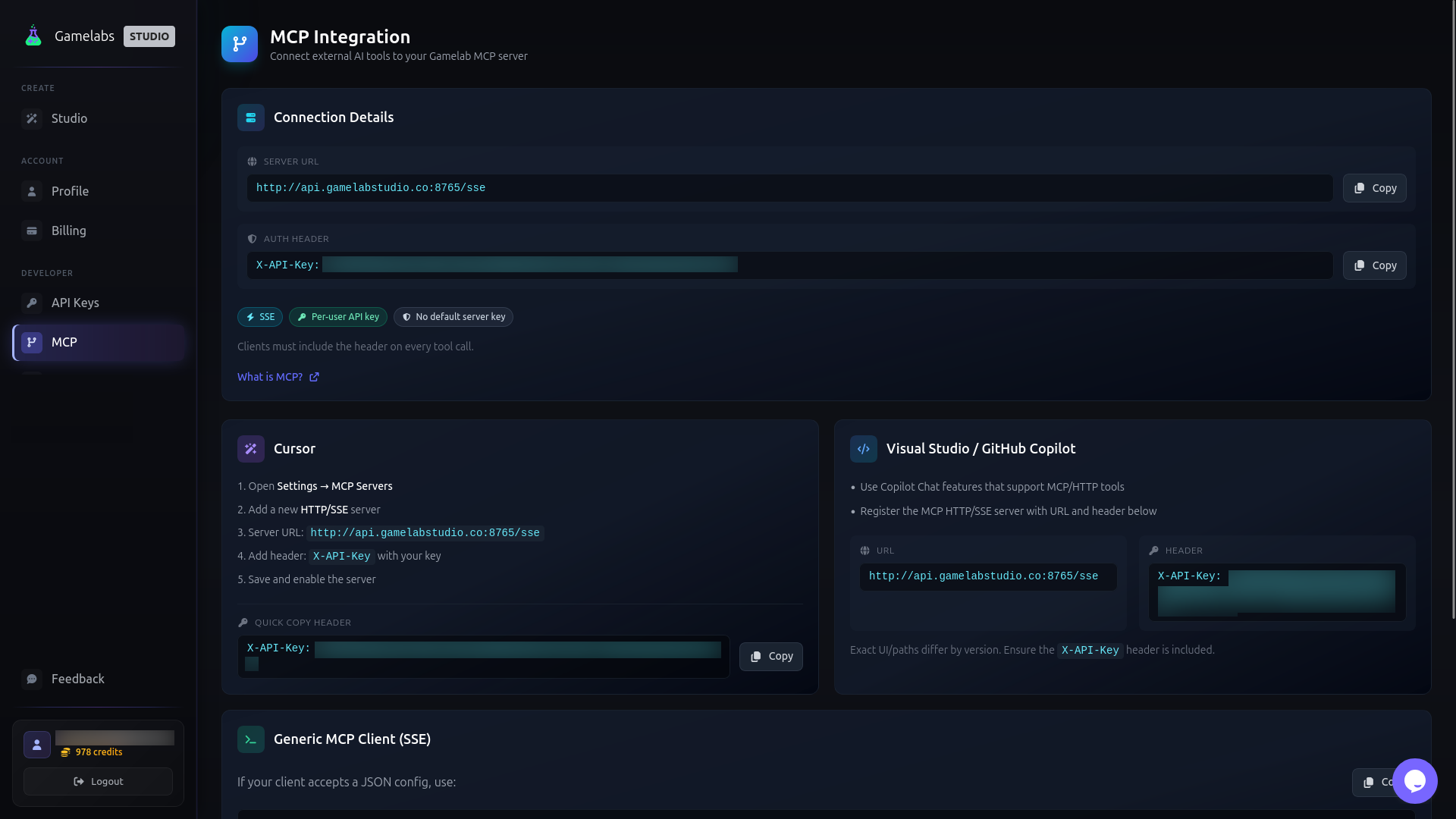
Copy your API key and keep it private. Do not publish it in documentation, commit it to Git, or share it in screenshots.
4. Add Gamelabs Studio to Claude Code
Exit Claude Code if it is currently open, then run the following command in your project directory. Replace
YOUR_GAMELABS_API_KEY with the key from your dashboard:
claude mcp add --transport sse gamelab-mcp http://api.gamelabstudio.co:8765/sse \
  --header "X-API-Key: YOUR_GAMELABS_API_KEY" \
  --scope local
The
local scope makes the connection available only to you in the current project. Claude stores local configuration in your user configuration rather than in the project’s version-controlled files.
If you want Gamelabs available in every project on your computer, use
--scope user instead.
Important: Avoid
--scope project when placing the API key directly in the configuration. Project-scoped MCP settings are stored in .mcp.json, which may be committed to Git.
5. Verify the Connection
List your configured MCP servers:
claude mcp list
Inspect the Gamelabs configuration:
claude mcp get gamelab-mcp
Start Claude Code again:
claude
Inside Claude Code, enter:
/mcp
The MCP panel should show gamelab-mcp as connected, along with its available tools. Claude Code automatically reconnects if an SSE connection is temporarily interrupted.
6. Generate Your First Game Asset
You can now ask Claude Code to use Gamelabs Studio with natural-language prompts. For example:
Use Gamelabs Studio to generate a pixel-art knight for a
side-scrolling fantasy game. Give the character silver armor,
a blue cape, and a readable silhouette. The knight is facing to the right.
You can also ask Claude to create complete asset pipelines:
Create a pixel-art skeleton warrior facing to the right, animate a
walking cycle, and turn the completed animation into a spritesheet.
Claude can select the appropriate Gamelabs tools, monitor generation jobs, and keep related images, animations, and spritesheets associated with the same studio asset.
Troubleshooting
The Server Does Not Appear
Make sure you run Claude Code from the same project directory where you added the local server. Then check:
claude mcp list
Authentication Fails
Confirm that the header is named exactly
X-API-Key. If necessary, remove the server and add it again with a fresh key:
claude mcp remove gamelab-mcp

claude mcp add --transport sse gamelab-mcp http://api.gamelabstudio.co:8765/sse \
  --header "X-API-Key: YOUR_NEW_GAMELABS_API_KEY" \
  --scope local
SSE Deprecation Warning
Claude Code’s documentation recommends Streamable HTTP for new MCP servers and marks SSE as deprecated. Gamelabs Studio currently provides an SSE endpoint, so
--transport sse is the correct option for this connection.