Video Editor
Trim generated animation, choose loop boundaries, preview motion, and prepare the source for sprite-sheet generation.
Open the Video Editor
Use Edit on the Animation card after a video generation completes. The Video Editor is separate from the Image Editor and works on timing rather than individual sprite-sheet pixels.
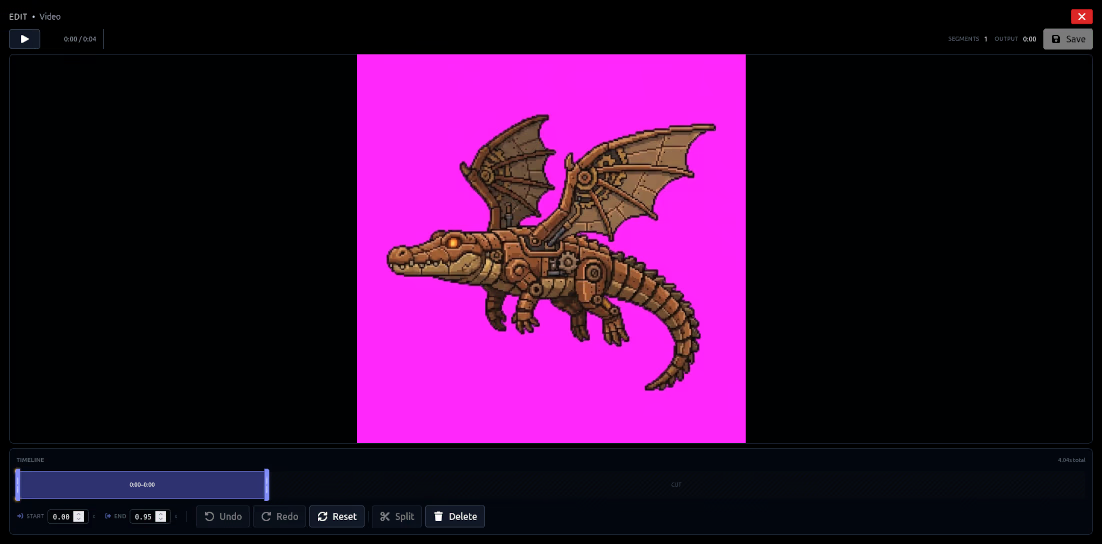
Trim the clip
Move the start and end boundaries to remove setup frames, frozen tails, or unwanted transitions. Preview the selected interval repeatedly before saving edits.
Create a loop
For idle, walk, run, or environmental cycles, compare the final selected frame with the first. Loop detection can suggest an interval, but visual continuity is the deciding factor. Avoid duplicate end frames that cause a pause.
One-shot motion
Attacks, reactions, and deaths often need a clear anticipation, action, and recovery rather than a loop. Trim enough context to preserve readability.
Downstream effects
Saved video edits become the source interval for trimmed downloads and sprite-sheet generation. If you change the trim after creating a sheet, regenerate the sheet to keep them synchronized.